Connecting Sources: Meetings, Email, Notes, and Everything Else
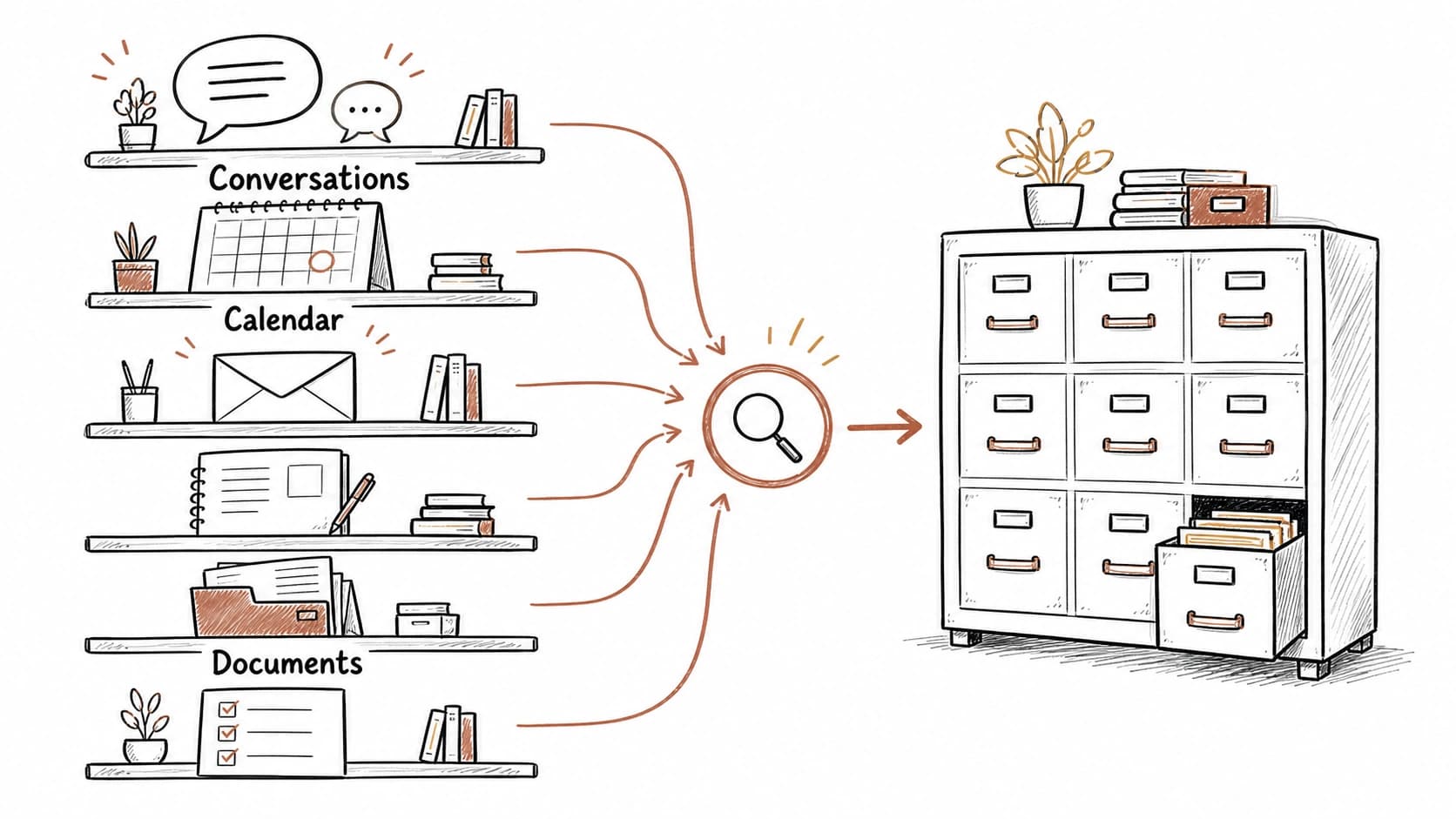
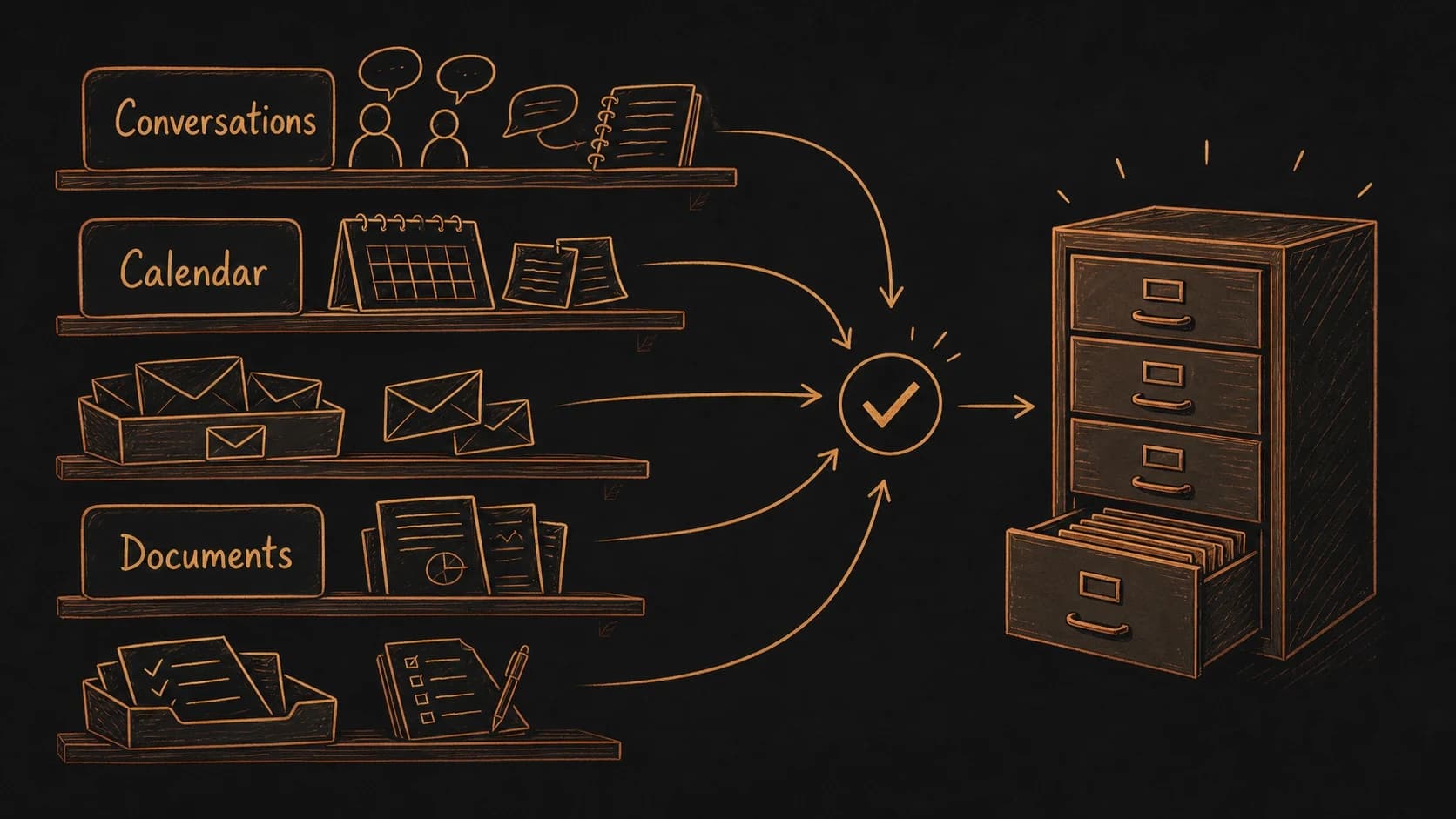
The previous chapter processed one raw source through the pipeline. This chapter connects the rest: meetings, email threads, voice notes, calendar events, and quick captures. Each source type carries different value and needs a different extraction pattern. You do not do this work yourself. Connect the source, paste the prompt, and Claude or Codex handles extraction, , filing, and indexing. Your job is to review the results and correct the AI when it gets something wrong.
Meetings carry decisions and commitments spoken aloud. Email threads carry promises made in writing. Voice notes preserve ideas that would otherwise vanish. Calendar events carry dates, attendees, and agendas that tie everything else together. The AI extracts what matters from each type, flags what is uncertain, and files the records into the right folder. You decide what becomes trusted.
Connect your sources so Claude can reach them
The most common friction point is copy-pasting. You have a meeting in Google Docs, a follow-up email in Gmail, and a calendar event in Google Calendar. Copying each one into the by hand adds enough friction to make you skip sources. Connect those services to Claude instead. In Claude's settings, look for Connected Apps or Integrations. Connect your Google account, and Claude can read your recent emails, calendar events, and Drive files directly. You can say "process the email thread with Sam about the onboarding pilot" and Claude pulls it in.
Connectors do not give Claude permanent access to everything. Claude reads only what you ask about during a conversation. It does not scan your inbox in the background, you can disconnect at any time, and the connection covers only the services you explicitly authorize.
If you prefer working with local files, Codex reads from your file system directly. Save sources into the raw/ folder, switch to Codex in the prompt surface, and it processes them from your local second-brain folder. No cloud connector needed.
Process a meeting
Start with one ordinary meeting. Thursday's client call produced a 30-minute , a calendar event with four attendees, and a follow-up email from Renee confirming the next step. Paste the transcript, or tell Claude to pull it from a connected source, and use the prompt below. The AI reads the full transcript, extracts every decision, owner, , and open question, flags tentative language, creates YAML , indexes everything in brain.db, and files the records into the right project folder.
Process a meeting transcript
Extracts decisions, commitments, and open questions. Flags tentative language.
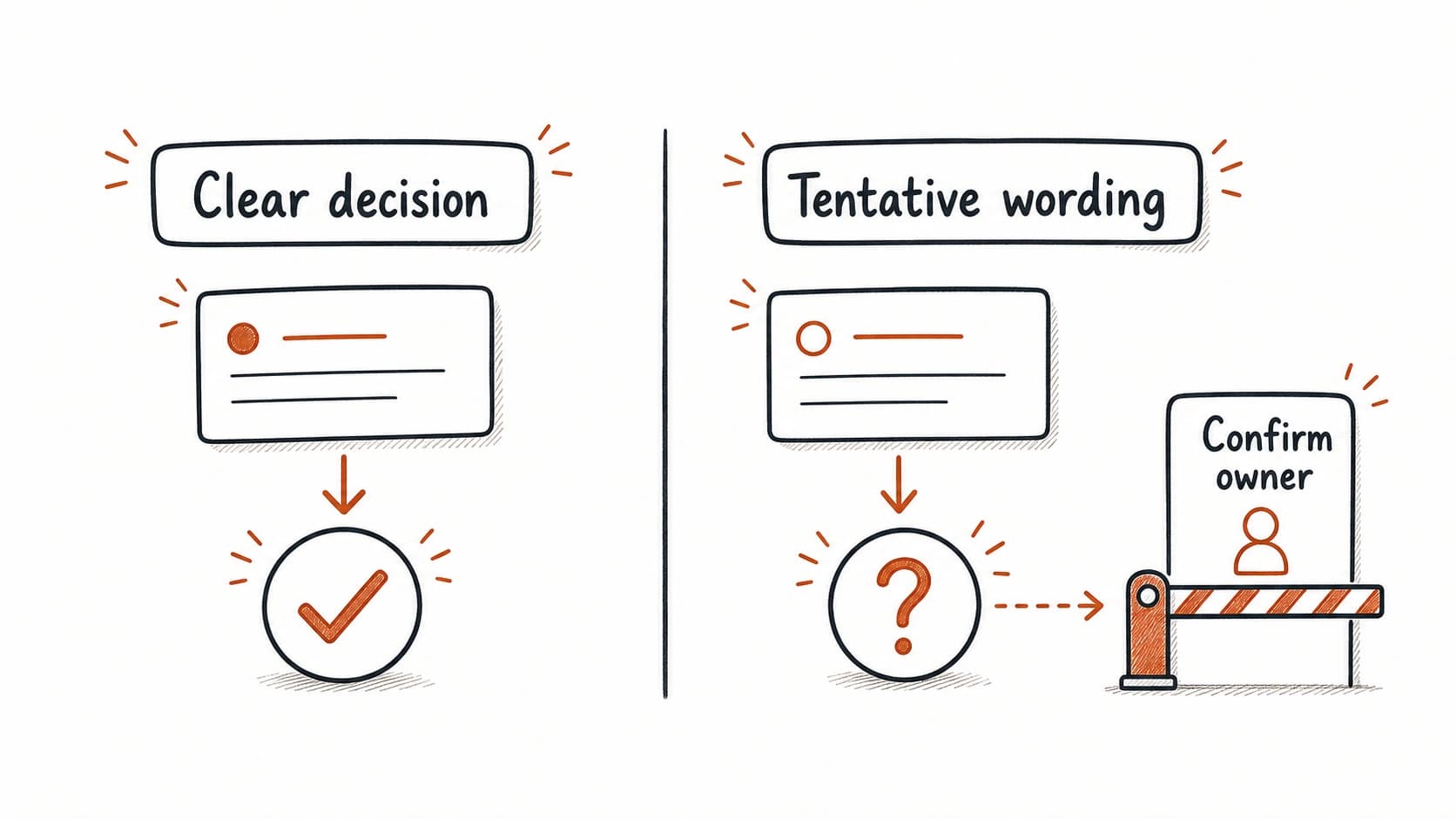
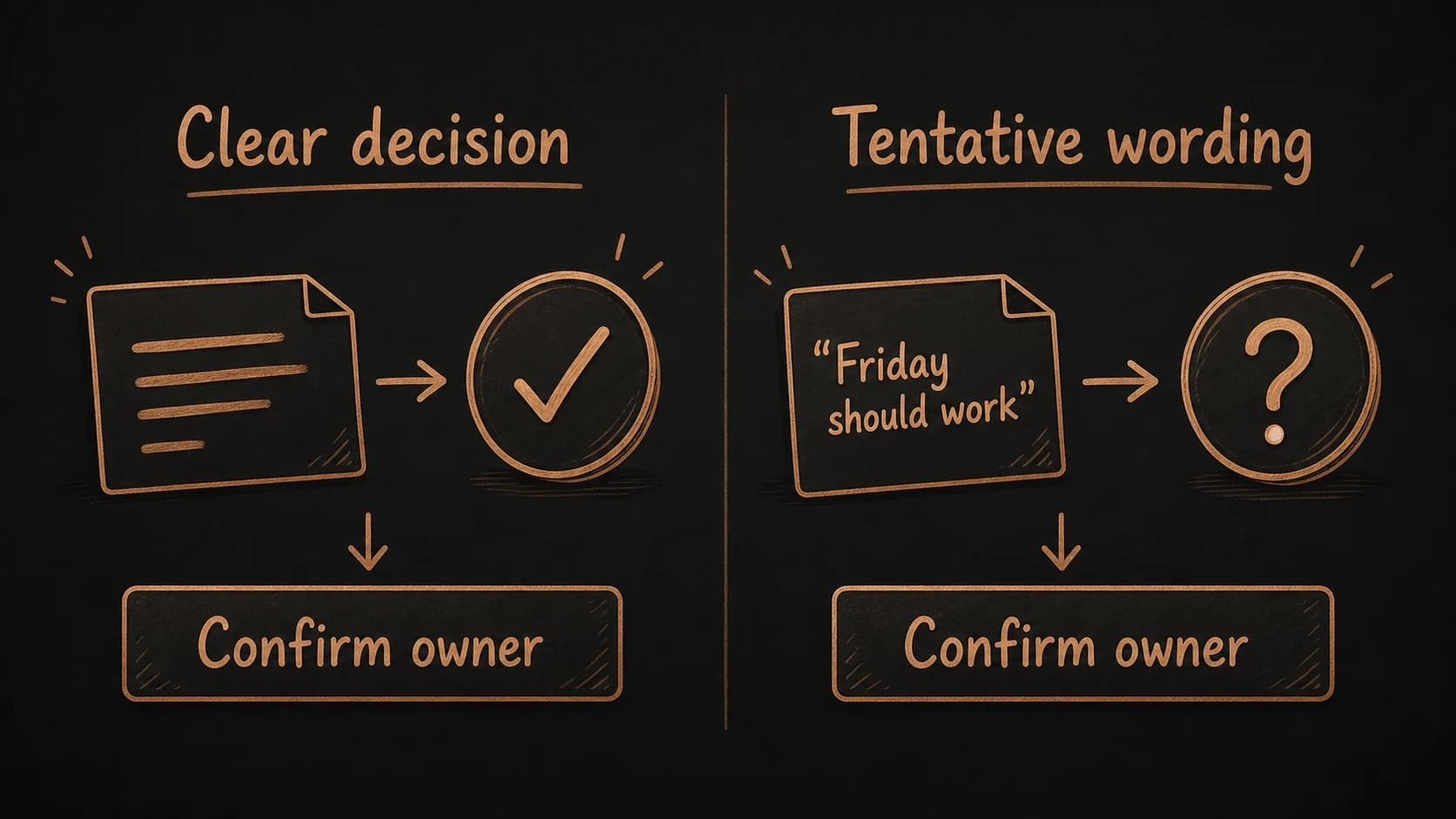
The output should include the full as a , plus separate records for each decision, , and open question. Each record carries a back to the transcript. If the transcript says Renee "will try to" send the draft by Friday, the AI should flag that as tentative. Filing it as a confirmed Friday deadline would be the kind of confident mistake that erodes trust in the whole system.
Process an email thread
Email extraction works differently from meetings. Consider a three-message thread about the proposal deadline: it includes an attached draft, a question about timing, and a reply that says "Friday should work." Nobody explicitly accepted ownership of the next step. The AI should flag that ambiguity rather than manufacture a where none was stated.
Process an email thread
Extracts requests, commitments, and replies owed. Flags ambiguous ownership.
Process a voice note or quick capture
Voice notes and quick captures are rougher than meetings or email. The transcription may contain errors, the topic might be unclear, and any action items tend to be implied rather than stated directly. The prompt below cleans up the text, identifies what matters, and flags words the transcription may have gotten wrong.
Process a voice note
Cleans transcript, identifies project and action items, flags transcription uncertainty.
Every processing error becomes a new standard
The first time you process a meeting , the AI will get something wrong. Maybe it promotes tentative language to a confirmed , files a personal note under the wrong project, or misses that "Renee" and "R." are the same person. Each correction is valuable. Write it down in a processing standards file, and the AI follows your rule next time.
Keep one standards file per source type in a standards/ folder inside your . Each file lists what to extract, how to file, and which errors you have caught so far. The prompts above already include the line "if a standards file exists, follow those rules." As you process more sources, your corrections accumulate into a living document that makes the AI steadily better at handling your specific material.
# Email Processing Standards

## What to extract
- Sender, recipients, date, subject
- Requests: who asked for what by when
- Commitments: who promised what by when (mark confirmed vs tentative)
- Attachments: save to the project folder and link
- Replies needed: what is still open and who owes it

## How to file
- Active project email → organized/01_Projects/{project-name}/
- Ongoing responsibility → organized/02_Areas/{area-name}/
- Reference material → organized/03_Resources/
- Uncertain project → leave in processed/ and flag for review

## Error modes discovered
- "Friday should work" is tentative, not confirmed
- Forwarded emails are not commitments by the forwarder
- CC'd recipients are not necessarily stakeholders
- Attachments need their own source cards, not just a mention
Project structure
second-brain
- rawzero-friction capture
- processedcataloged by AI
- organizedfiled by project
- 01_Projects
- 02_Areas
- 03_Resources
- 04_Archives
- 05_Reviews
- standards
- meeting-processing.md
- email-processing.md
- voice-note-processing.md
- brain.db
Calendar events and screenshots follow the same pattern: extract, flag uncertainty, write , index in brain.db, and file into organized/. Each source type gets its own prompt and its own standards file. As your standards grow, you can turn them into a Claude skill or a Codex project instruction that applies automatically to every new source.
brain.db already supports multiple views of your sources
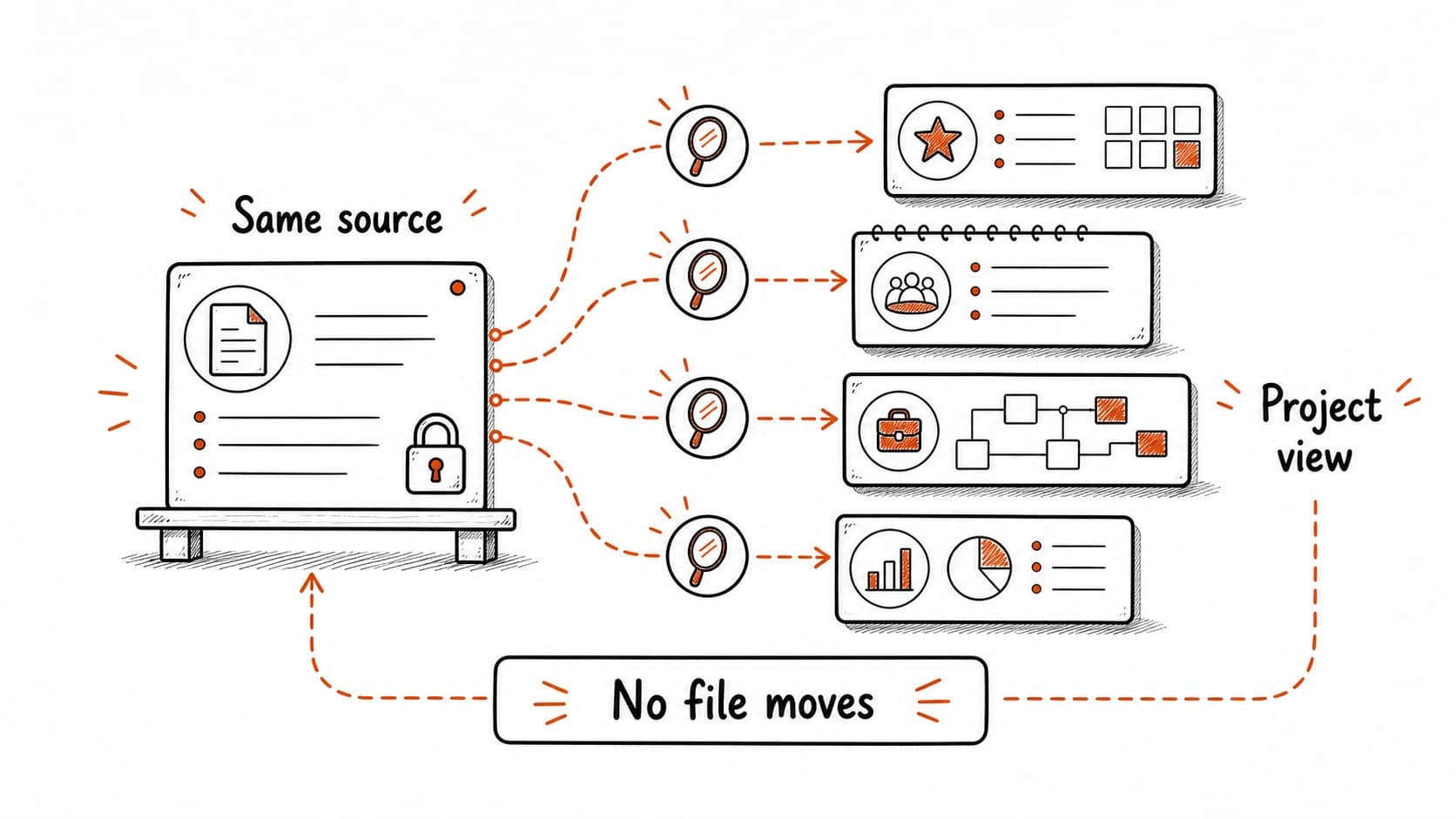
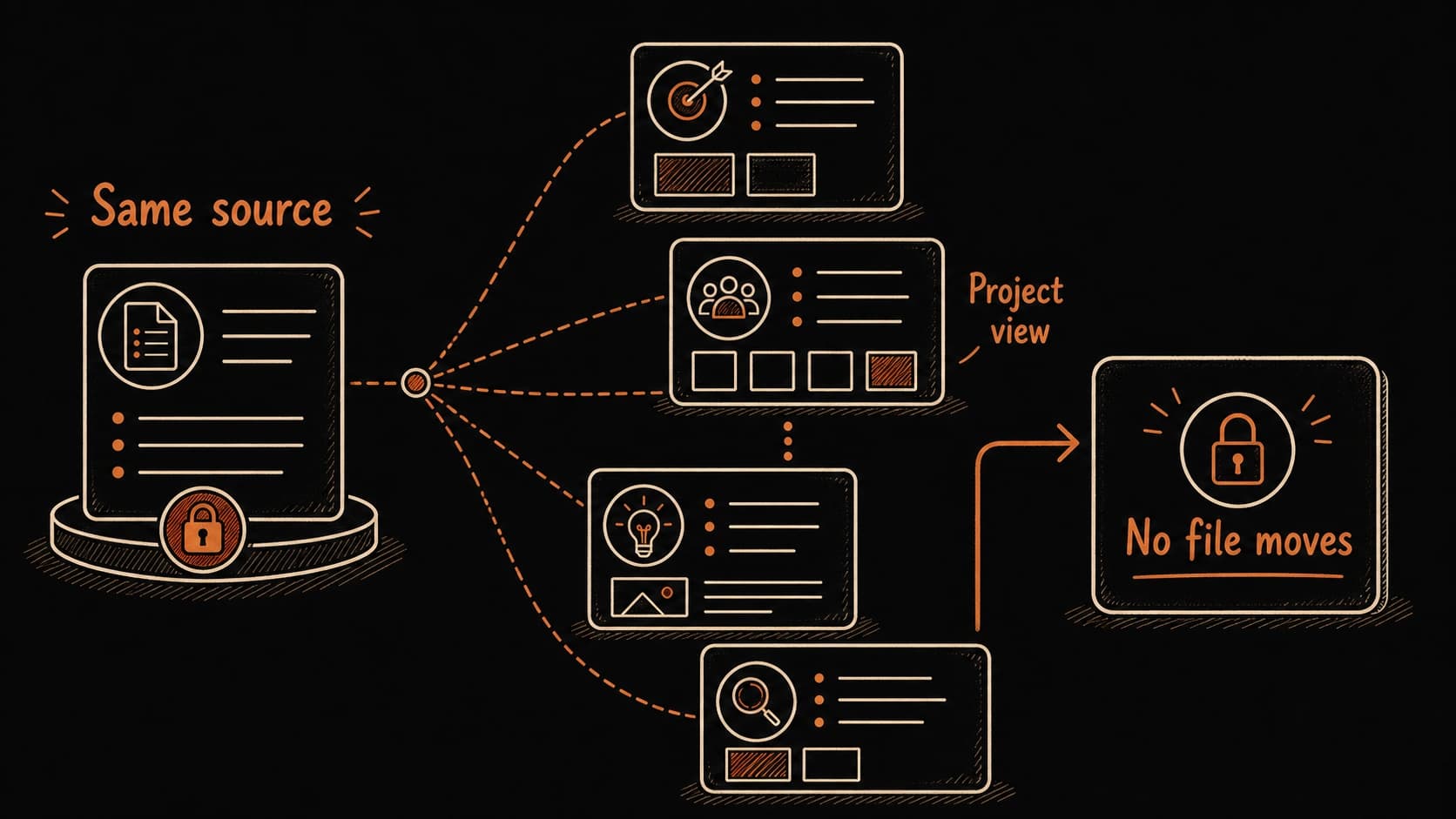
Every source the prompts process goes into brain.db with project, person, date, and source type fields. The four most common patterns are already built in. Before a client call, ask Claude to show you the project view. Before a one-on-one, ask for the person view. During your , ask for the date view. The files stay in their organized/ subfolder. brain.db gives you a different angle on the same records without moving anything.
The Thursday client call illustrates all four views. The project view shows the pilot decision, Renee's draft agenda, and the open legal question. The person view for Renee shows her tentative Friday and the email thread . The date view for the past week shows the May 8 meeting, the May 9 follow-up, and the May 12 review. The topic view for "onboarding" connects the pilot to notes from other projects. Same sources, four paths, and you built none of them by hand.