Build Your First Morning Brief
A morning brief assembles the day before you have to think about it
You open your laptop and check your calendar, then your email, then your task list, then Slack, then the notes from yesterday. By the time you have assembled a picture of the day, twenty minutes have passed and you have already made three reactive decisions without thinking about whether they were the right ones.
A morning brief is what happens when the assistant does that assembly for you. It reads your calendar, your inbox, and your task list. It produces a single document: here is your day, here are the risks, here is what needs your attention first. You review it once and start the day with instead of scrambling for it.
This is the first most readers should build. It produces immediate value using sources you already have (calendar, email, tasks), and it gets better every time you correct its output. When you paste your calendar and email into the assistant and review the brief it produces, you are practicing the full cycle: source, output, correction.
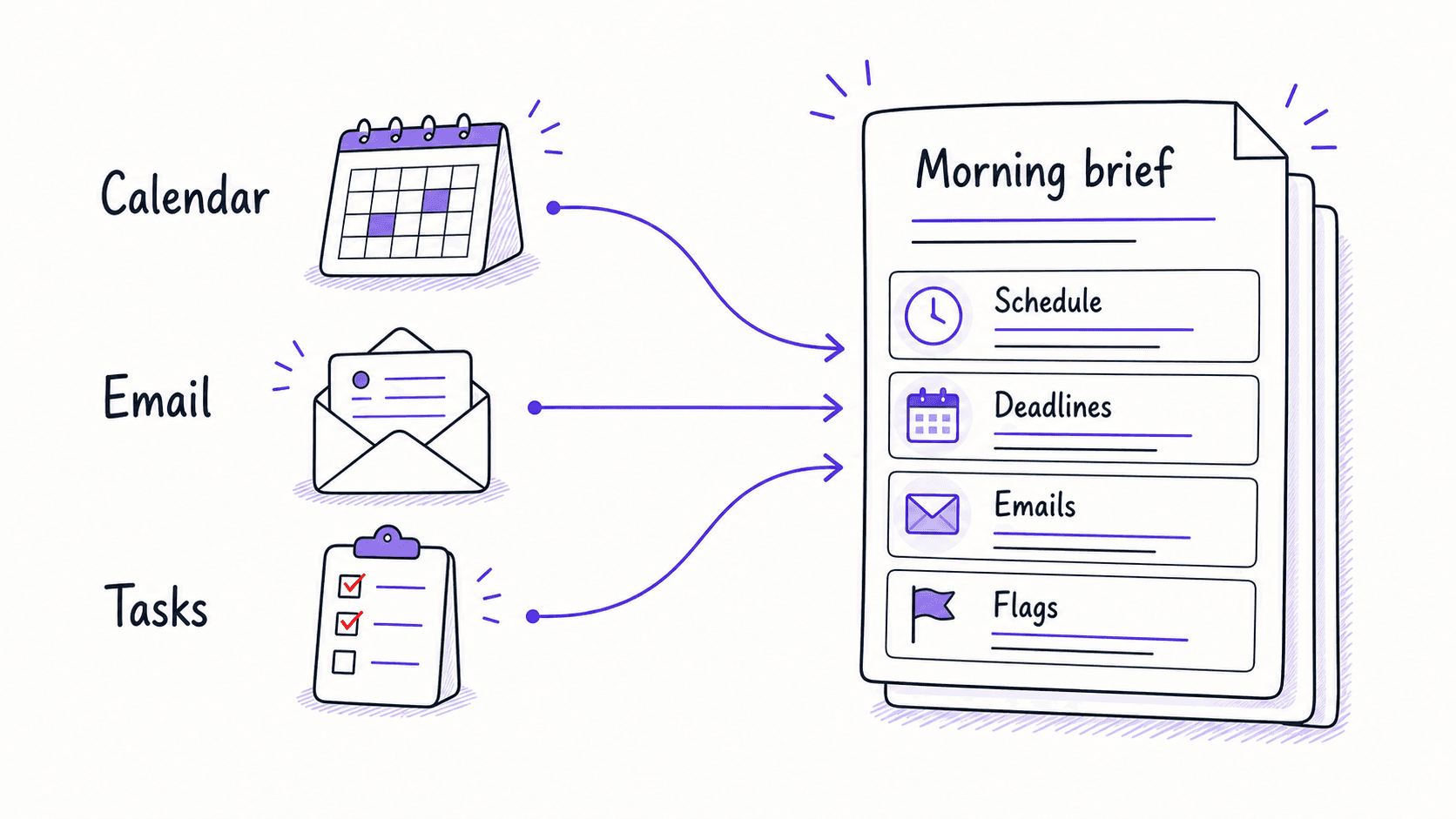
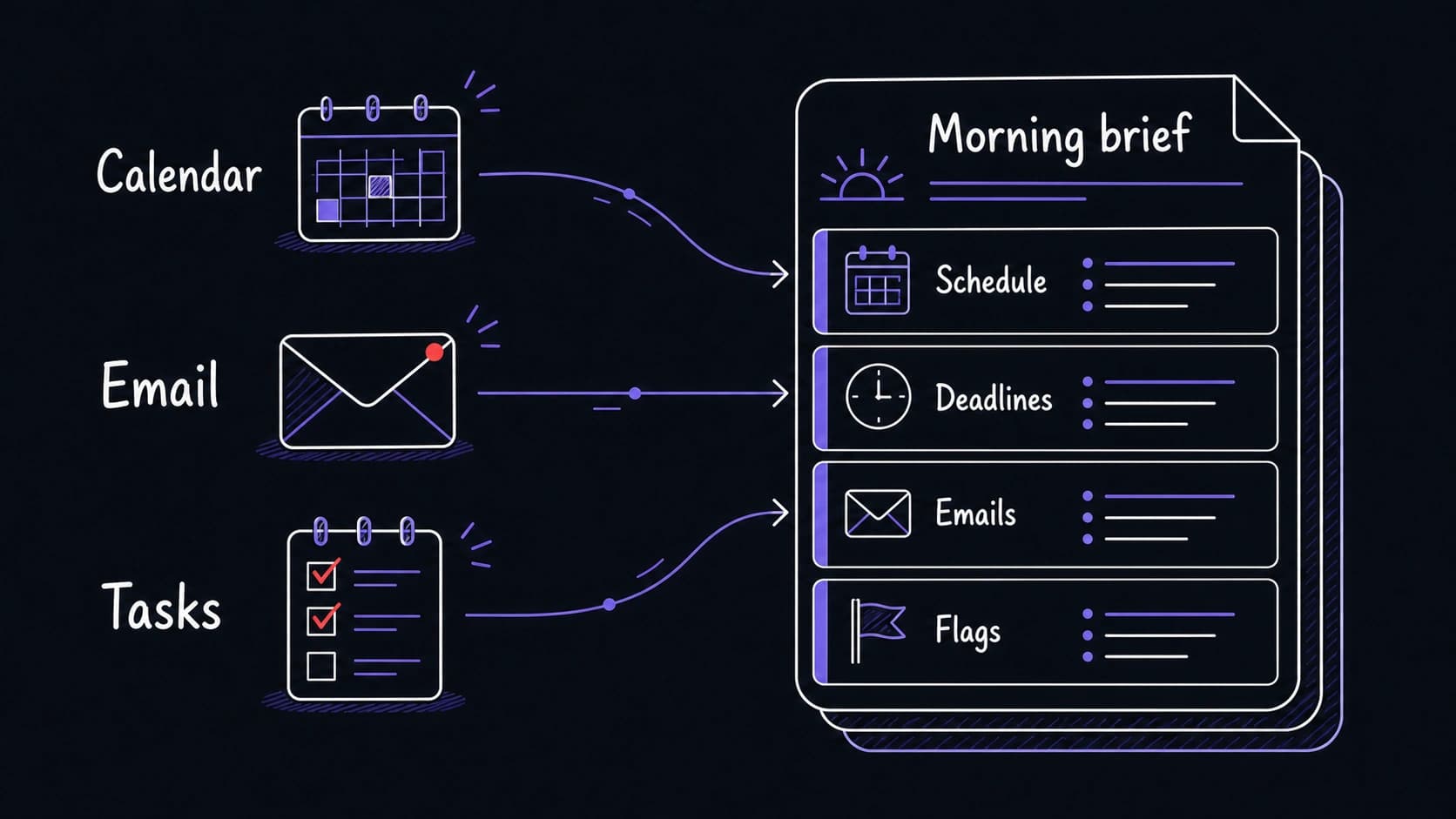
Four sections give you the right depth at the right speed
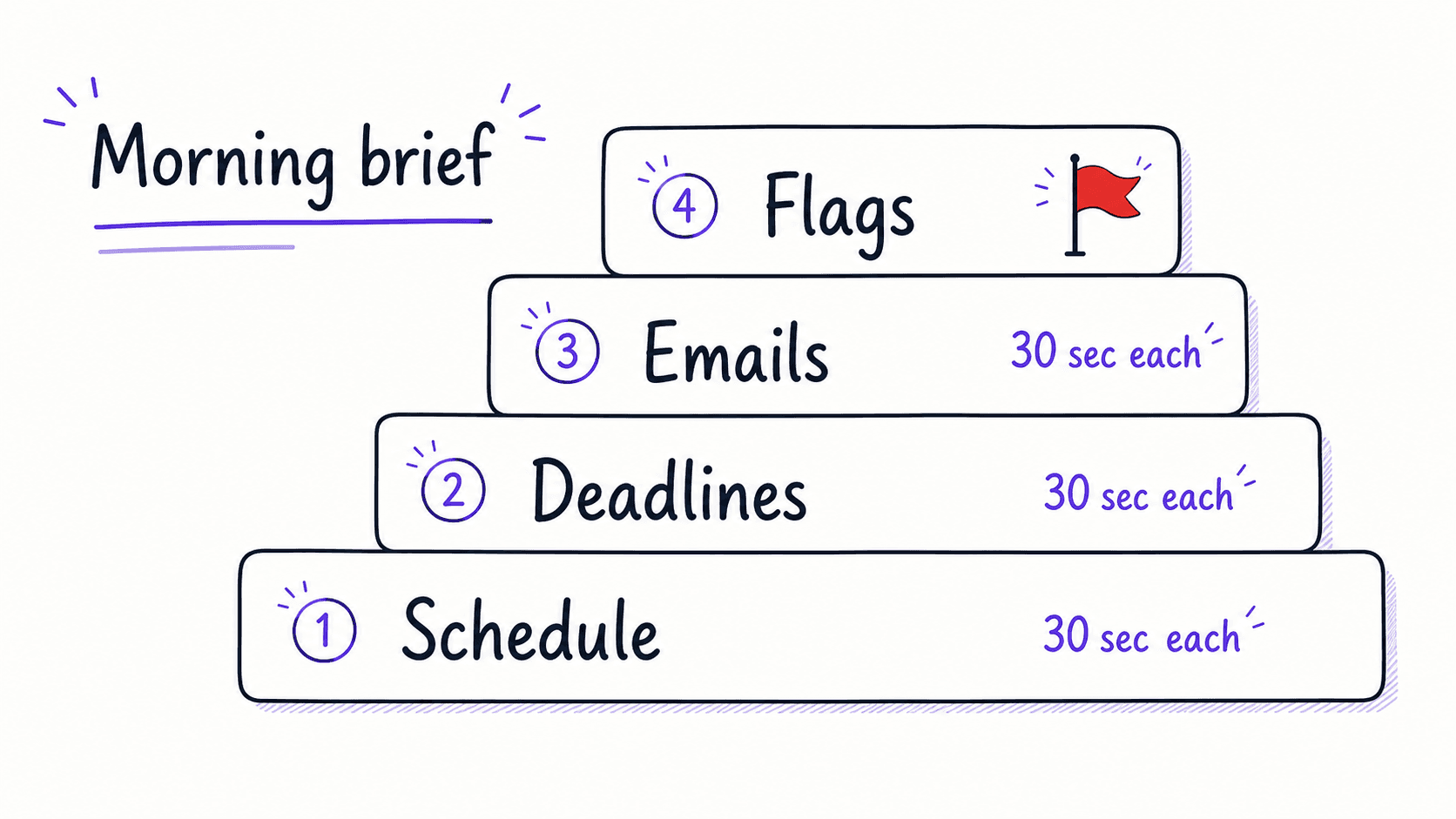
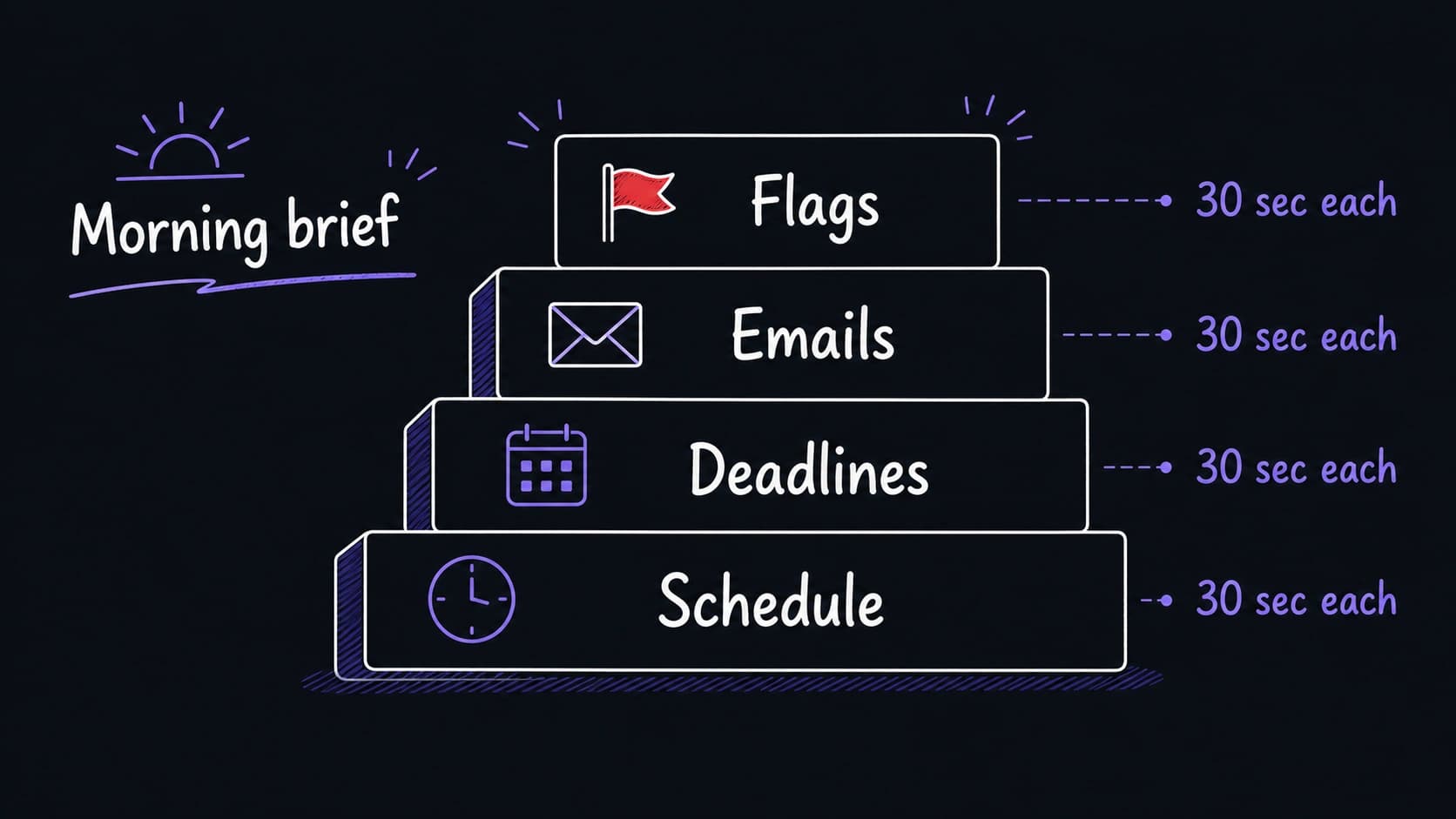
The brief has four sections, and you design them to match how much time you have.
Section 1: Schedule overview (30 seconds). Today's meetings in order, with any scheduling conflicts highlighted. If you are running late, you read this section and nothing else.
Section 2: Deadlines (30 seconds). Tasks and commitments due today or this week, ranked by urgency. Each item links to its source so you can verify the priority.
Section 3: Flagged emails (30 seconds). Emails from the last 24 hours that need a reply or contain a deadline, ranked by urgency. Emails that are informational only are excluded from this section.
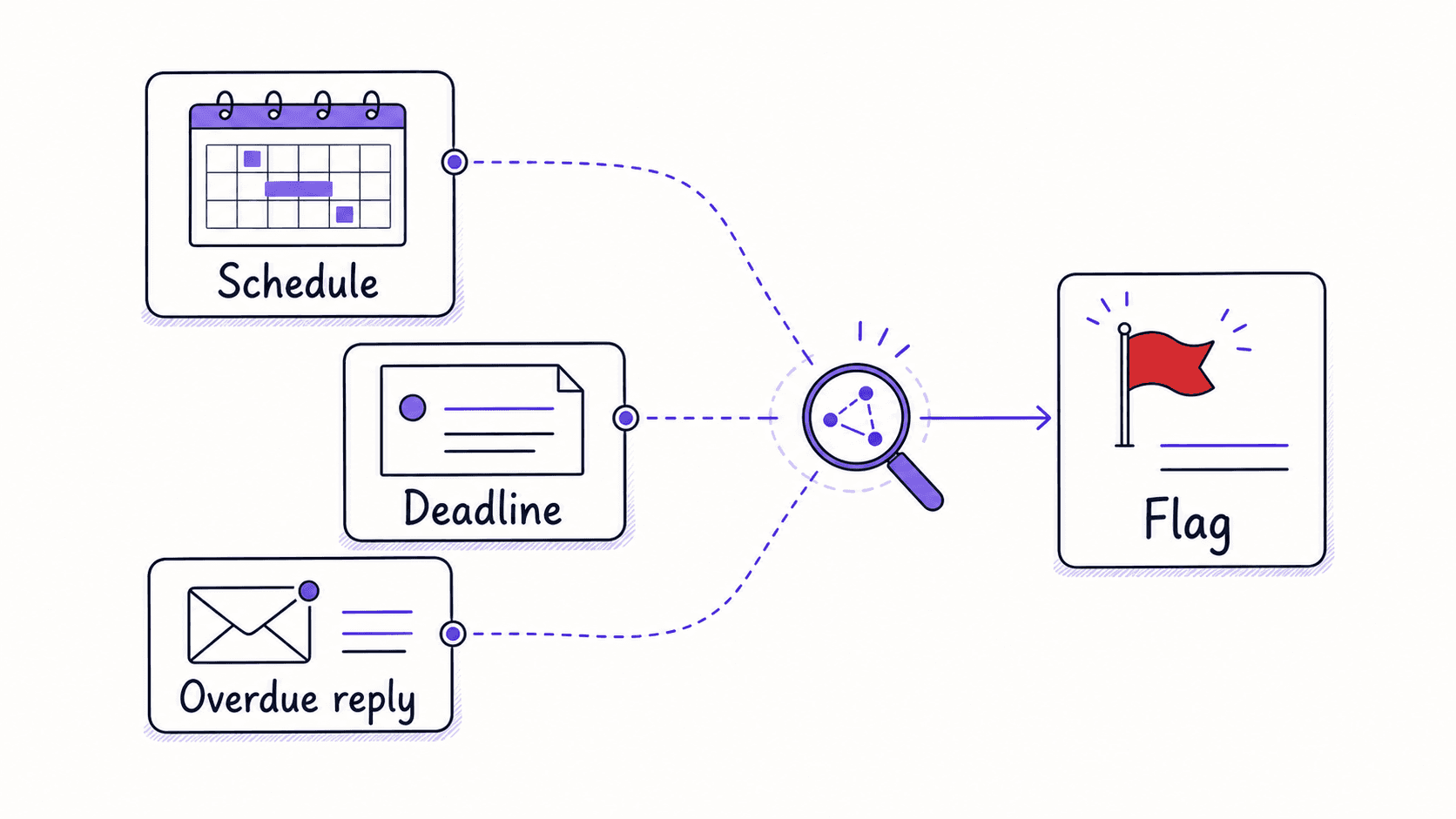
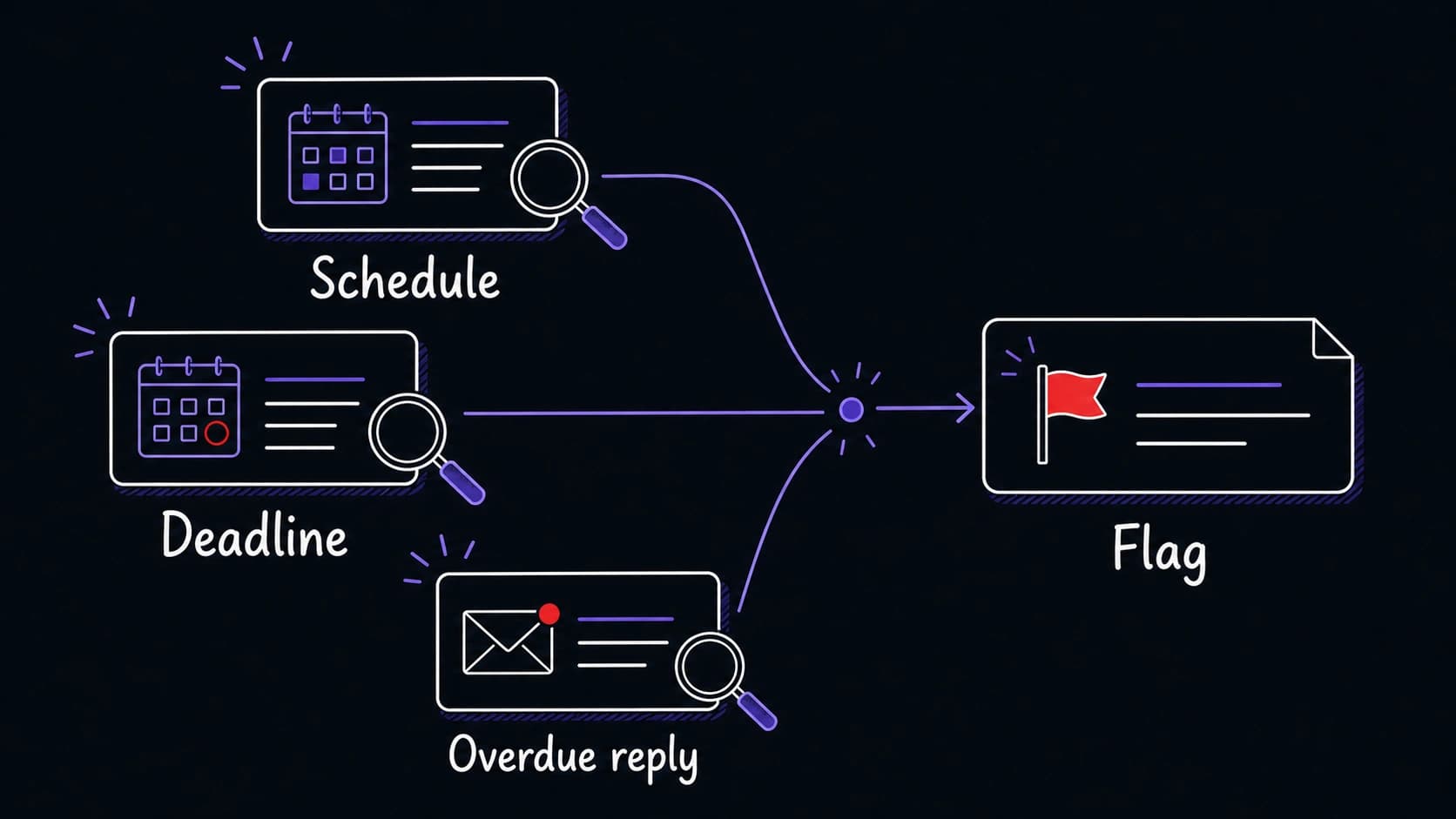
Section 4: Flags and anomalies (30 seconds). Things the assistant noticed that you might miss by scanning a calendar alone: back-to-back meetings with no breaks, a deadline that conflicts with a packed afternoon, an email from yesterday that needed a response and did not get one. Flags are the highest-value part of the brief because they surface things you would not have noticed on your own.
Connected sources make the brief useful on day one
The brief needs to read from your real calendar, email, and task list. This is where the connected sources from your assistant come in.
In Claude, enable the Google Calendar and Gmail from Settings. Claude will request access to read your calendar events and email threads. Each action it takes with your data requires your approval in the conversation.
In ChatGPT, enable Google Calendar and Gmail from the Apps menu (Settings, then Apps). The setup is similar: authorize access, and ChatGPT can read your schedule and recent emails.
If you are building in a coding agent like Claude Code, the agent can access your local files directly. You can export your calendar as an ICS file, export recent emails, or connect to your Google account through the APIs the agent sets up for you.
The briefing template tells the assistant exactly what you want back
The prompt below turns your connected sources into a structured morning brief. Fill in the two variables (your connected sources and your urgency rules) and run it.
Proactive flags surface what you would miss by scanning a calendar
Scanning your calendar shows you what is scheduled. The brief adds what the schedule means.
Common flags that prove useful over time: scheduling conflicts (two events at the same time), compression (five hours of meetings before a deliverable is due), missed follow-ups (you said you would send something and the system has no record that you did), and overdue replies (an email from yesterday that needed a response and did not get one).
Flags are suggestions the assistant proposes; you decide whether to act. This is the at work: the brief never reschedules a meeting or sends a message on your behalf. It surfaces the opportunity and lets you choose.
The feedback loop makes the brief yours after a week
The first version of any is never the final version. After a week of morning briefs, you will have opinions: some sections are noise, some flags genuinely useful, and some information still missing.
Feed those opinions back: open the assistant, paste your correction, and save it as a reusable instruction. For example: 'Stop including weather unless rain is forecast. Always lead with the meeting that has the most prep. Add a section for emails I starred but did not reply to.' Each correction you keep refines tomorrow's brief.
This iterative refinement is the core of the whole book. When you tell the assistant 'that flag was wrong about the deadline' and save the correction, the next brief gets that detail right. The version you use a month from now is the one shaped by dozens of corrections like that.