Turn the Inbox Into a Queue You Can Trust
Checking email is reactive; processing a is a decision
Most people check email dozens of times a day. Each check is a small interruption that pulls attention from whatever else was happening. The inbox rewards urgency over importance because the newest message sits at the top regardless of whether it needs a response.
This replaces checking with processing. Three times a day (morning, after lunch, end of day), the assistant reads your inbox, classifies every message, groups them by priority, drafts replies for the urgent ones, and delivers the result as a you review once. The digest is the interface. The inbox is the backend.
The shift from checking to processing is deliberate. Real-time email monitoring encourages reactive behavior, which is the opposite of what a personal assistant system should do. Batching protects your attention and makes each processing session a conscious decision about how to spend the next ten minutes.
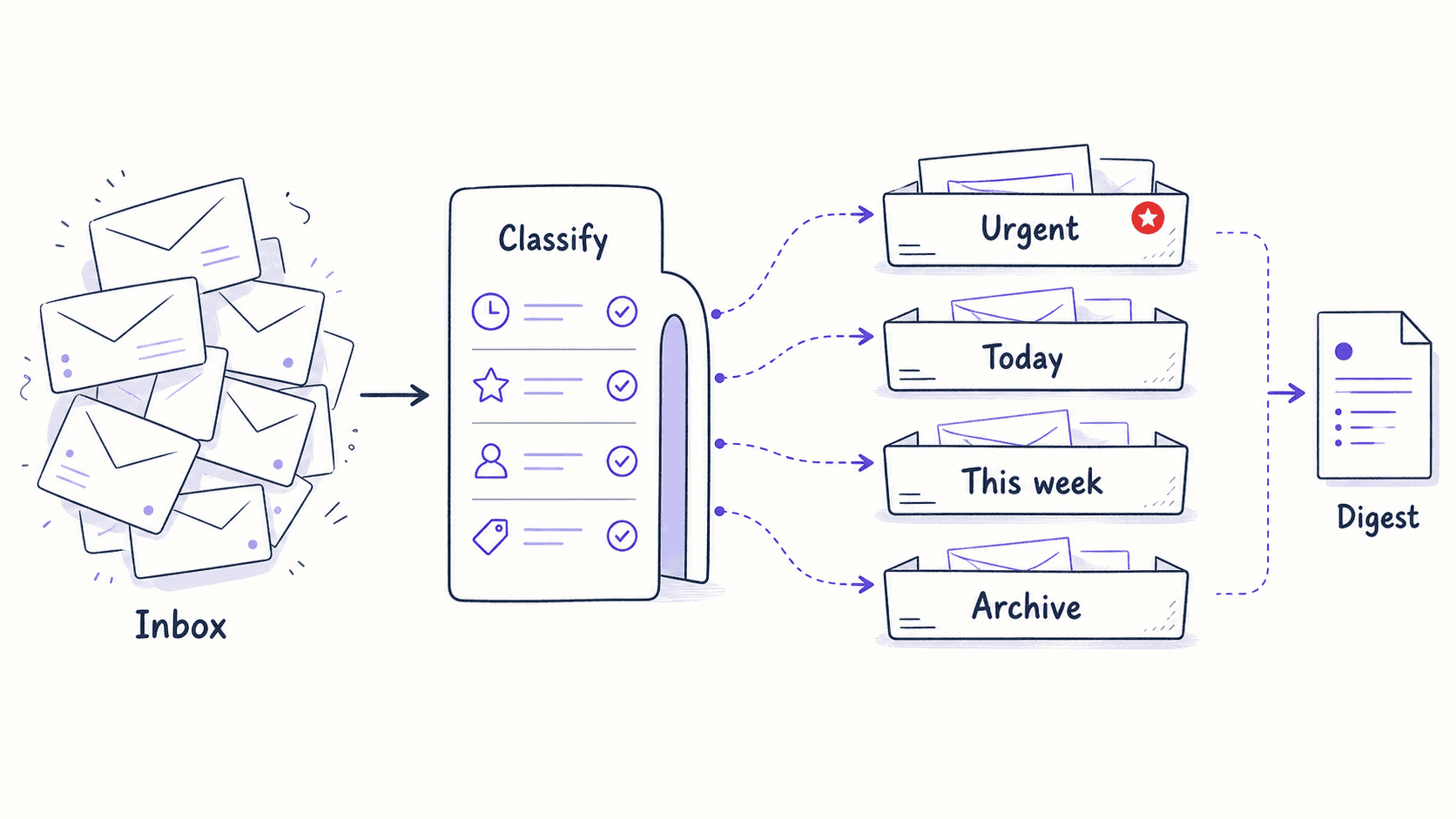
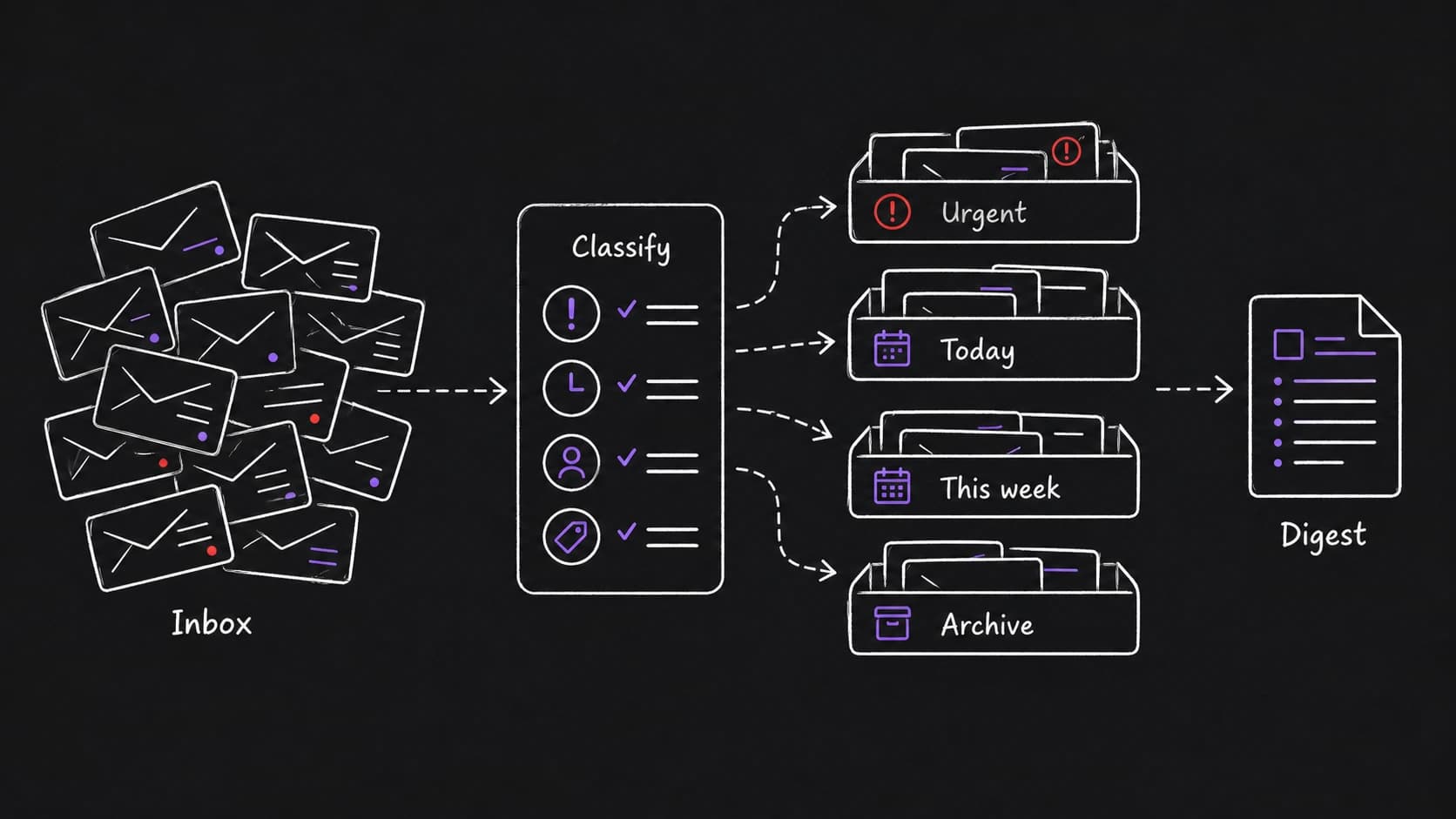
Classification sorts each email four ways, and you set the rules
Email triage is more than important versus unimportant. The assistant sorts each message along four dimensions, and your rules determine where each message lands.
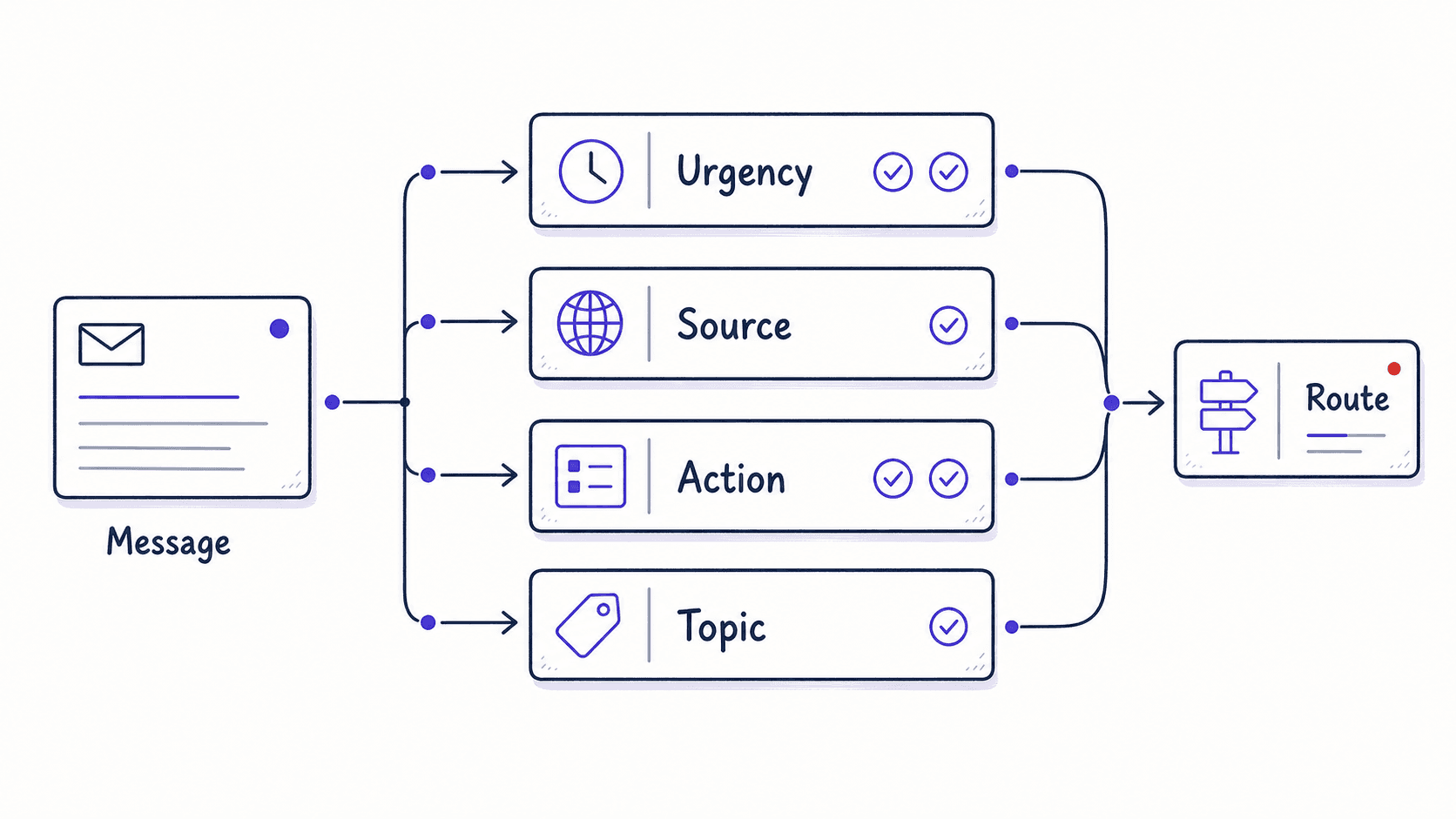
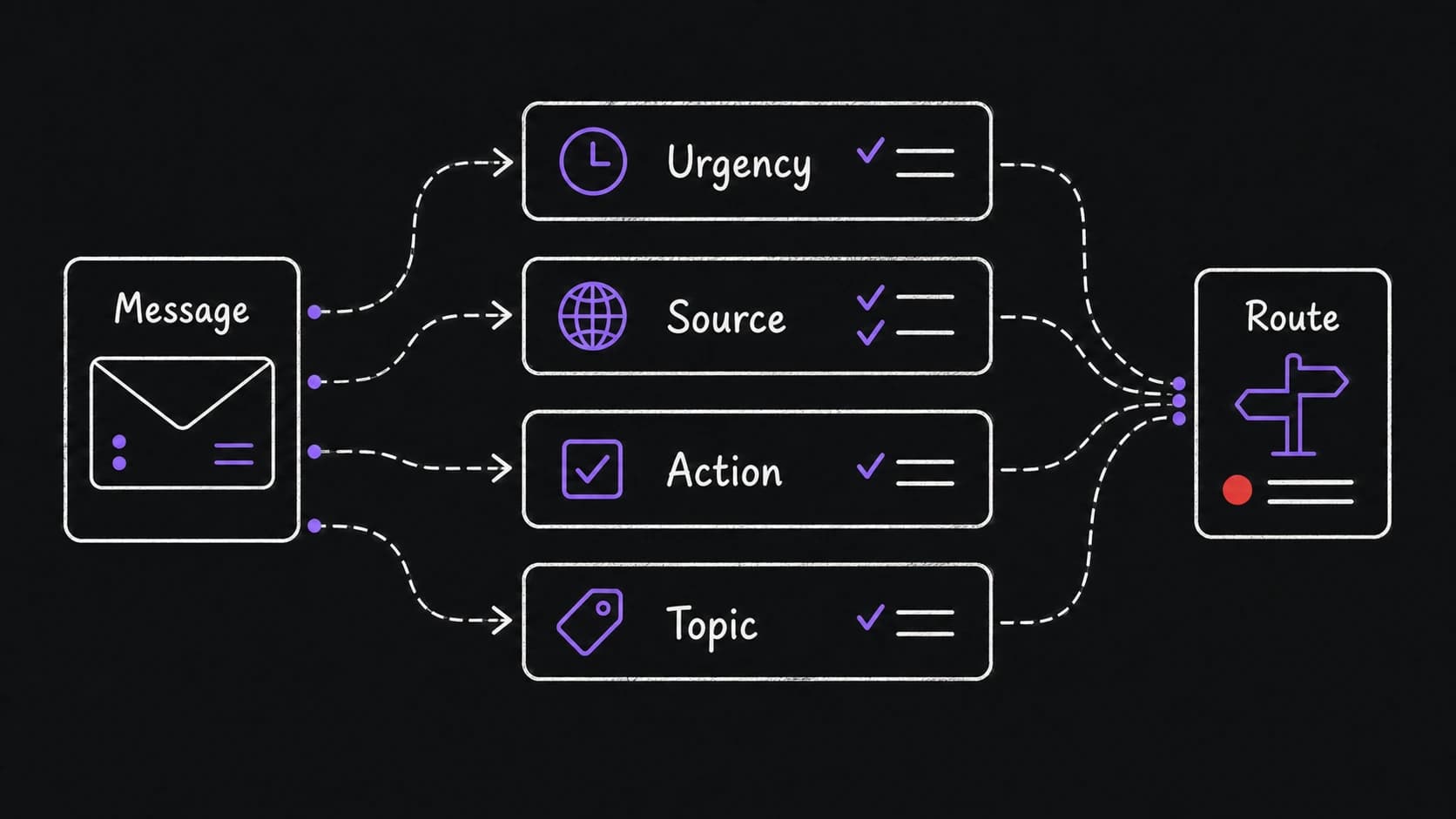
These four dimensions together produce richer sorting than any single inbox folder system. An email from a client about Project Atlas that needs a reply today is classified differently from a newsletter about Project Atlas that can be archived. The combination of who sent it and how urgent it is catches that distinction.
The replaces scanning with a structured review
When you finish reviewing the morning email batch, the is the document you open. Instead of scanning raw messages, you read a brief that looks like this:
The separates information from action. You read the summary in thirty seconds. You review the urgent items and their suggested replies. You scan the today items. You skip the archived items entirely. The assistant did the sorting. You do the judgment.
Suggested replies do the first 80 percent of the writing
For urgent emails, the assistant goes beyond flagging: it drafts a response you can review, edit, and send. The draft uses your communication style, which means the assistant needs examples to learn from.
The first time you build the email , provide five to ten examples of emails you have sent. Three to a client (showing your professional tone). Three to your team (showing your casual, direct style). Two to leadership (showing your concise, data-driven approach). The assistant uses these as style references for every suggested reply.
This 80/20 ratio recurs everywhere in this book. When you review a drafted email reply, the assistant already wrote 80 percent of the message. You spend the final 20 percent judging tone, checking accuracy, and approving the send. The assistant's speed on drafting, classifying, and assembling gives you more time for the judgment calls that require your attention.
Corrections make the classification smarter every week
Your initial triage rules will be wrong. What matters is noticing when they are wrong and telling the assistant how to fix them.
You put this in Archive, but it should be Today because any email mentioning money amounts over $500 is always urgent for me. You classified this newsletter as Archive, but I always want to read the Monday edition of this one; only archive the others. You put this in Urgent, but internal standup reminders are always routine.
When you correct the assistant ('that email from Sarah was urgent, not routine'), save the new classification so tomorrow's applies it. After two weeks of corrections, your classification rules are personal and accurate in a way no default email client can match. After a month, you stop correcting because the rules have converged on your actual priorities.
Routing rules send email data to the that needs it
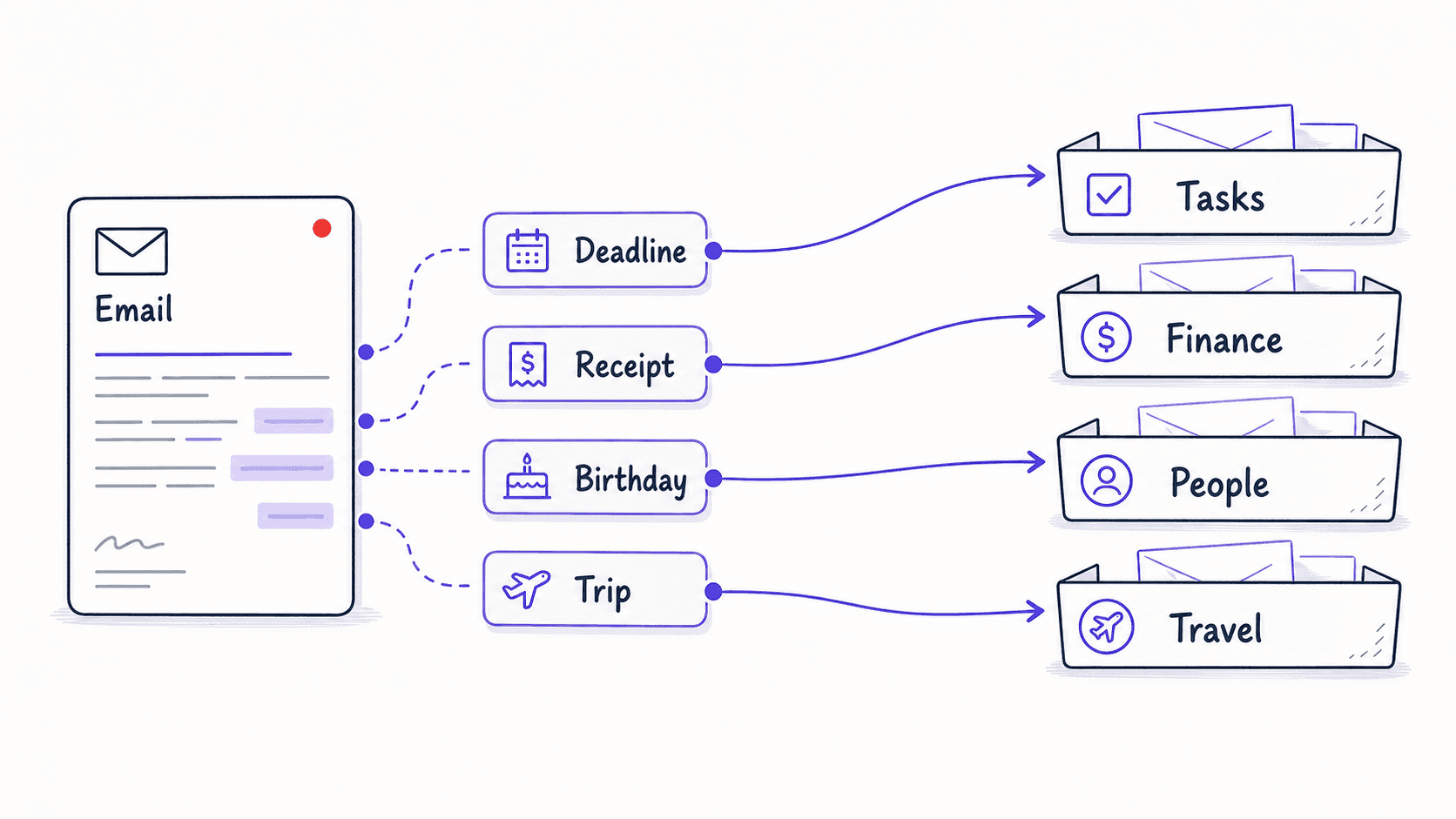
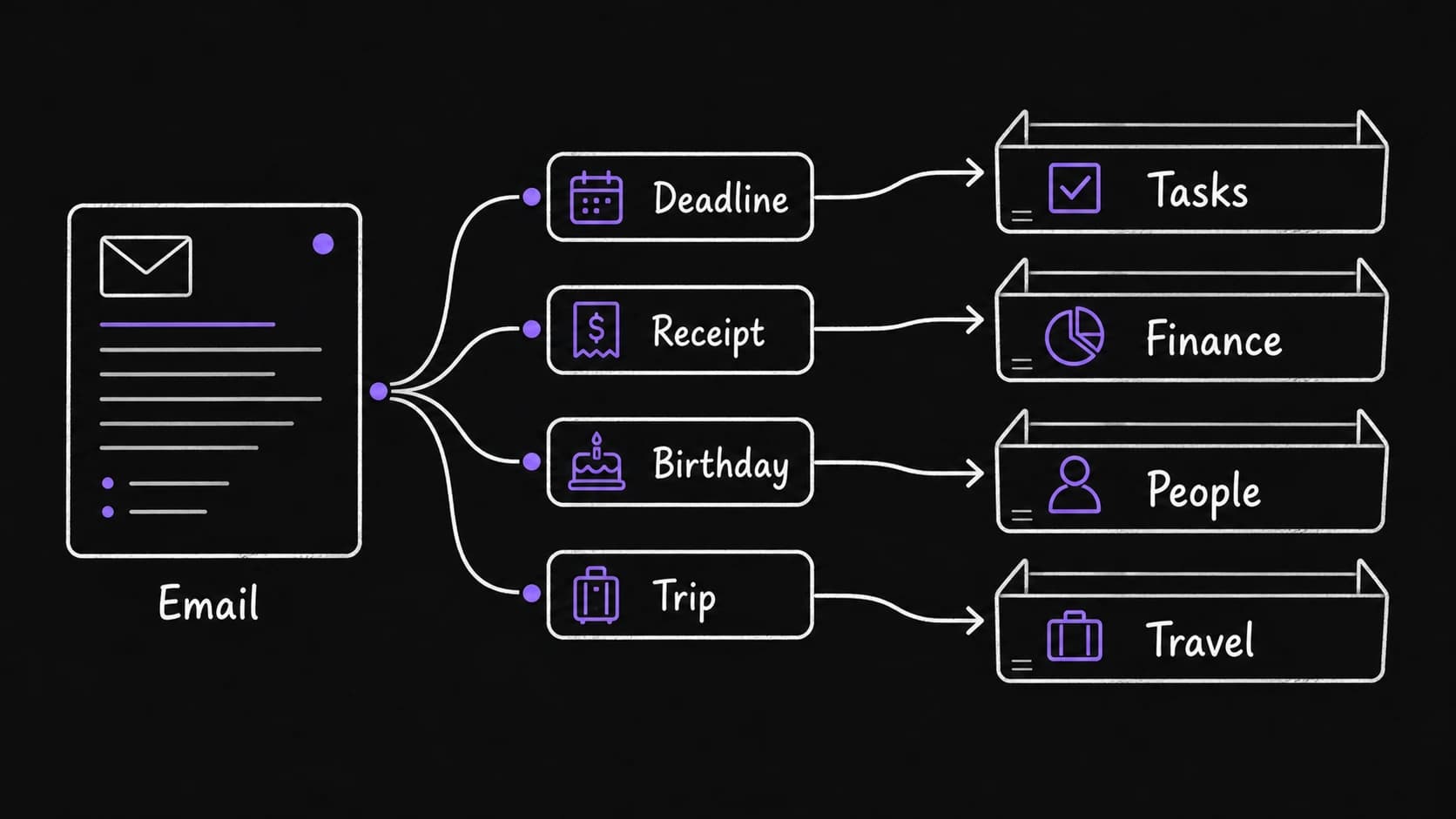
Some emails do not need a reply. They contain information that belongs in another . Routing rules tell the assistant where to send that information automatically.
An email mentioning a birthday triggers a note in the relationship . An email with a deadline creates a task in the task module. An email with a receipt logs a transaction in the finance module. An email confirming a flight updates the travel records.
You define the rules: when you see this type of email, send the relevant data to that . The assistant extracts the information and writes it to the where the target module can read it. The email stays in the inbox. The data it contained now lives where it is useful.
The unsubscribe audit keeps the inbox from growing back
Every Sunday, the system surfaces newsletters you have not opened in two consecutive weeks. 'You received four issues of [newsletter] and opened zero. Unsubscribe?' This is a small example of the system maintaining itself.
Over months, the unsubscribe audit steadily reduces the volume of email the classifier has to process. Fewer newsletters means fewer items in the archive bucket, which means the gets shorter, which means your review gets faster. The system improves by subtraction.
Voice turns the urgent items into a hands-free update
This is where the from the Turn Any Into Audio chapter gets its first real application. After the is generated, add one instruction: read me the urgent items and their one-line summaries.
The result: you hear 'Two urgent emails. First, Sarah Chen is asking about the revised Project Atlas timeline. Suggested reply is ready for your review. Second, an invoice from CloudHost for $847, due in three days.' You now know what needs attention without opening your laptop.