

Learn by doing
Walkthroughs
Short, step-by-step setup guides. Each one ends with a working result and links its official sources.
Learn by doing
Short, step-by-step setup guides. Each one ends with a working result and links its official sources.
Create a skill from your current requirements, then improve its instructions as you use it.
A reusable skill you have tested and know how to use and update.
Member starter
Members onlyCopy the directions into Codex. Your agent can help with the setup; the steps below explain what to do and what to check.
New here? View membership
If you ask Codex for the same kind of work again and again, a skill saves your instructions so later chats can reuse them. For weekly meeting recaps, the instructions might say to capture decisions, name who agreed to own each one, and list unanswered questions separately. Your current requirements are enough to create the first version.
Ask Codex’s skill-creator to save the skill where you will use it, then test it with new meeting notes in a new chat. Update the saved instructions when you find a better approach or change your requirements or standards, and test those revisions too.
Asking Codex for the same meeting recap every week means retyping the same format each time. A skill saves those instructions so later chats can reuse them. Your current requirements, such as listing decisions, naming who agreed to own each one, and keeping unanswered questions separate, are enough to start. An earlier recap helps show what you want if you have one.
If you already worked out the format in an earlier Codex chat, continue in that chat. Otherwise, in the ChatGPT desktop app, choose Codex from the dropdown at the top left, then New chat. If you already know which project will use the skill, start the chat in that project. Describe what the skill should do with your meeting notes.
Check: Codex knows the recurring task, the notes you will give it, and your requirements.
A skill saved in one project does not show up in chats from your other projects. In Codex, a project groups chats around a folder on your computer. A project skill lives in that folder, so only that project’s chats can use it. A personal skill lives in your home folder, so every project on this computer can use it. A recap format for one team’s meetings usually fits that team’s project; a general meeting-recap skill may be more useful as a personal skill.
Tell Codex whether to save a project skill or a personal skill. Let it handle the folder paths and show you where it saved the files. Codex may ask your approval before saving a personal skill outside the project.
Check: The skill will be available in the projects where you intend to use it.
A skill’s location decides which chats can find it. It does not give Codex access to more of your files.
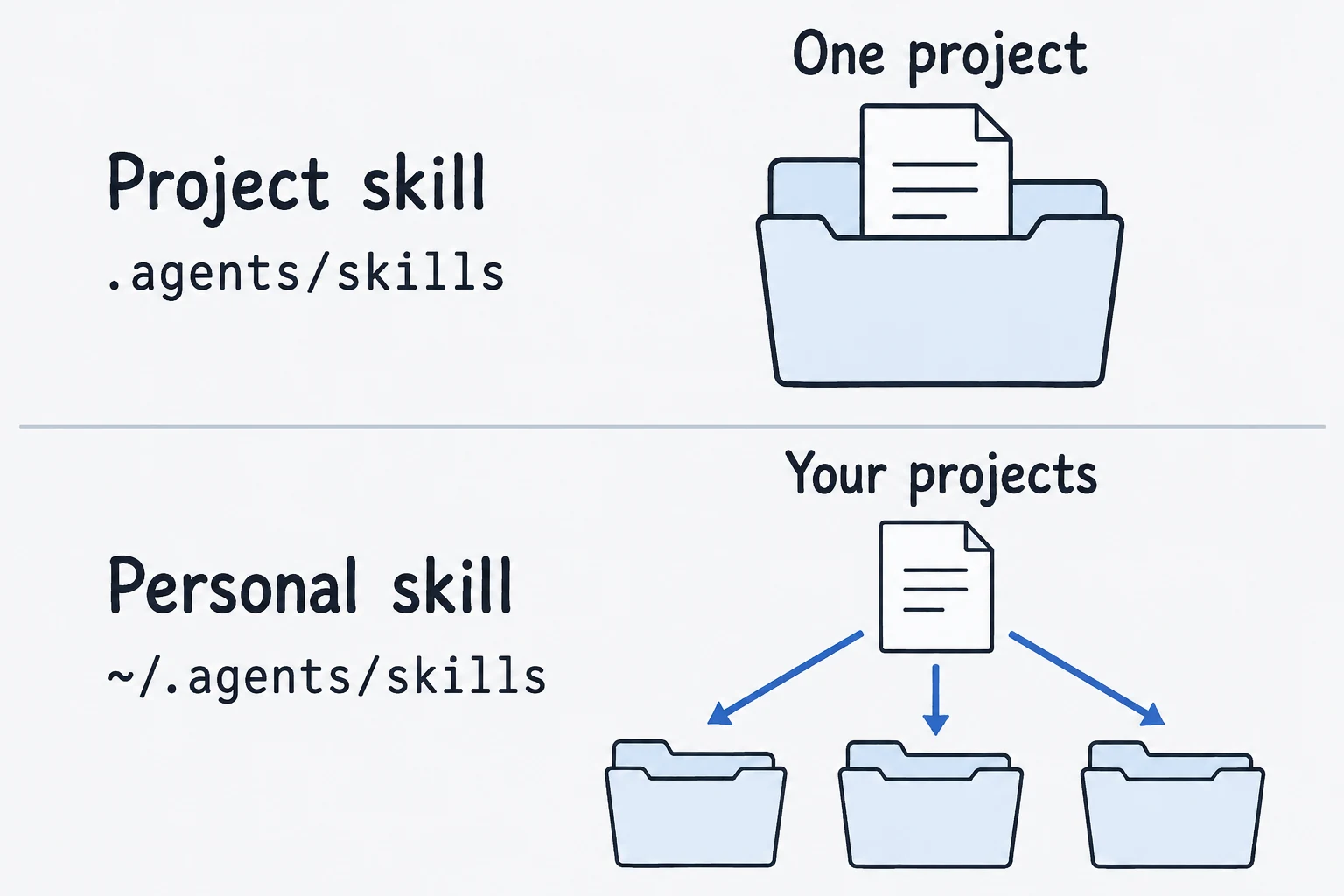
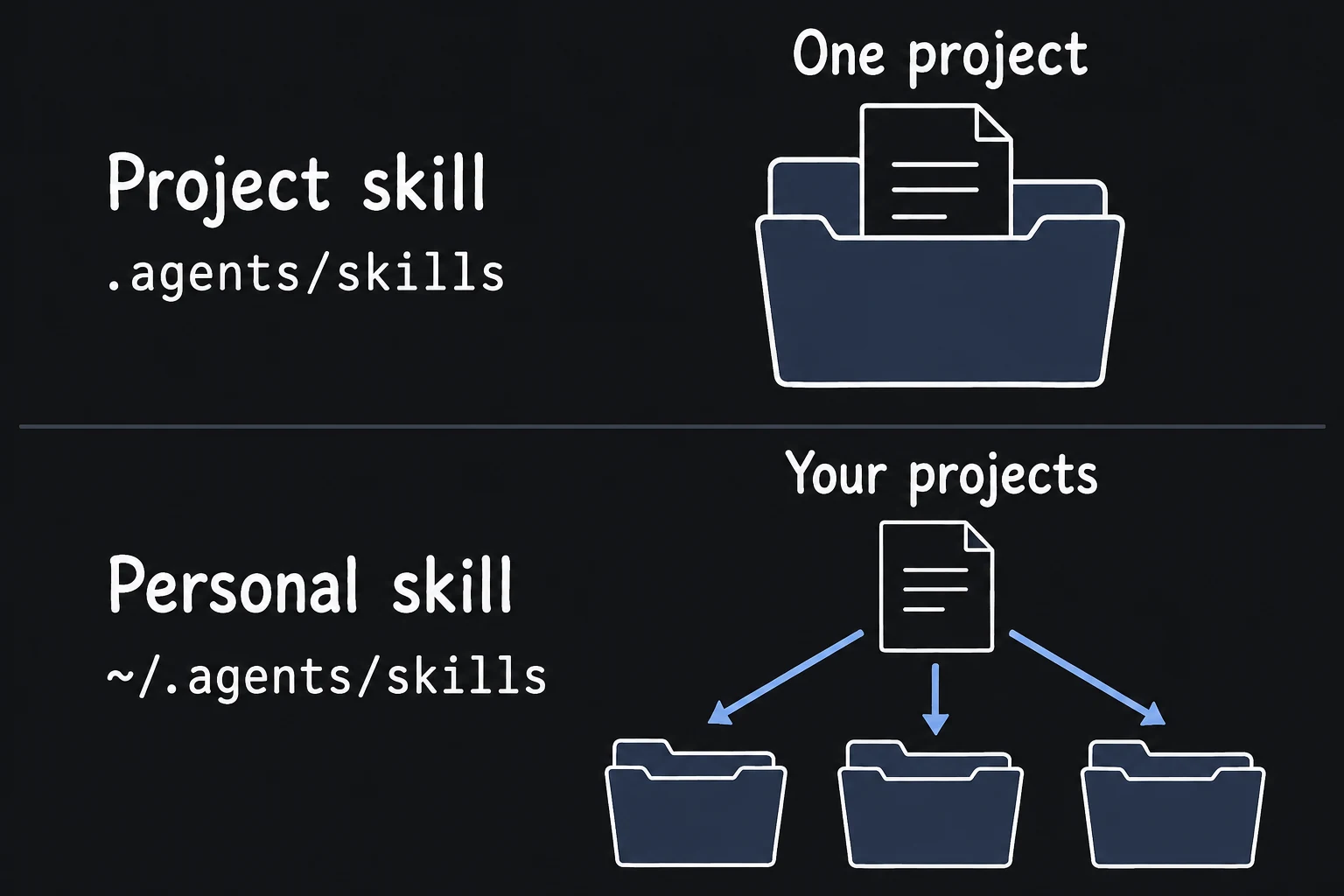
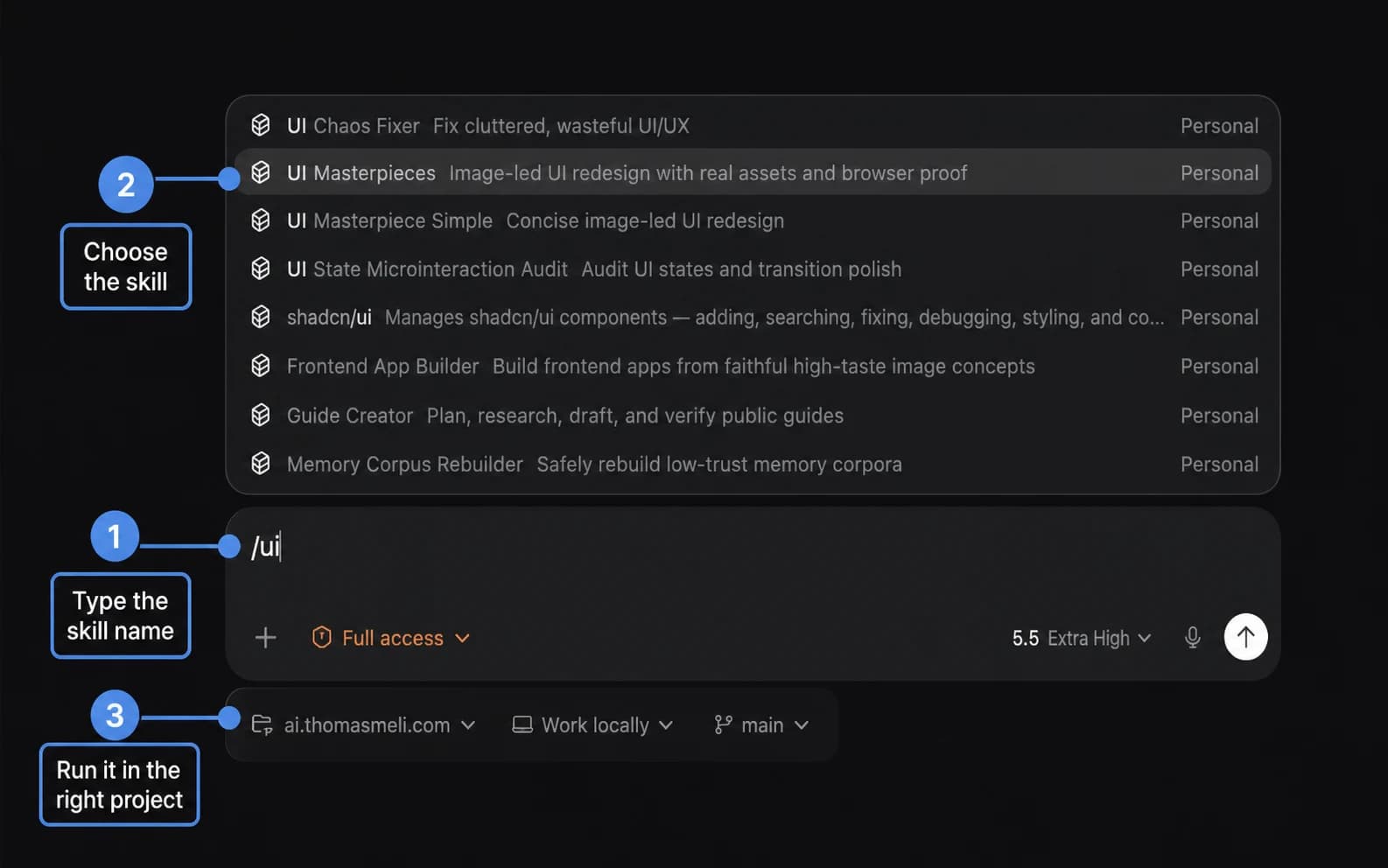
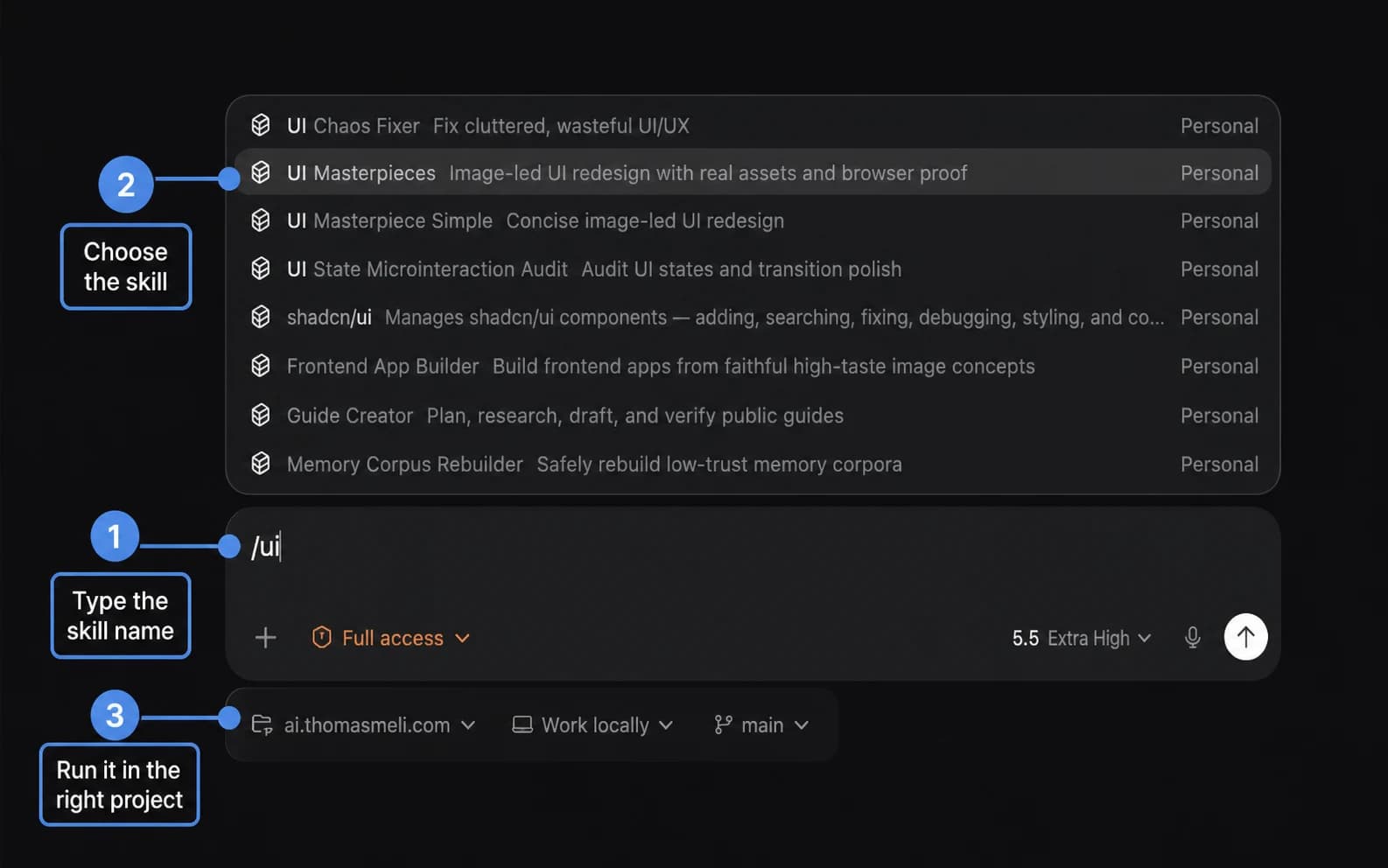
Codex can write the skill for you with skill-creator, a built-in skill for making skills. It saves a folder with a SKILL.md file holding the skill’s name, a short description, and your instructions. You type $ and the name to use the skill on purpose. Codex also reads the description to decide whether a request matches, and uses a matching skill on its own unless automatic use is turned off for that skill. A specific job such as summarizing meeting notes is easier to match than “help with writing.”
Type $ in the message box and choose skill-creator, or type $skill-creator. Ask it to create meeting-recap from your requirements: the notes you will give it, the recap you want, and anything it must leave to you, such as sending the recap.
Check: Codex shows the saved skill and explains when to use it.
Ask it to keep the skill focused on this one job, and ask what any extra file or script is for.
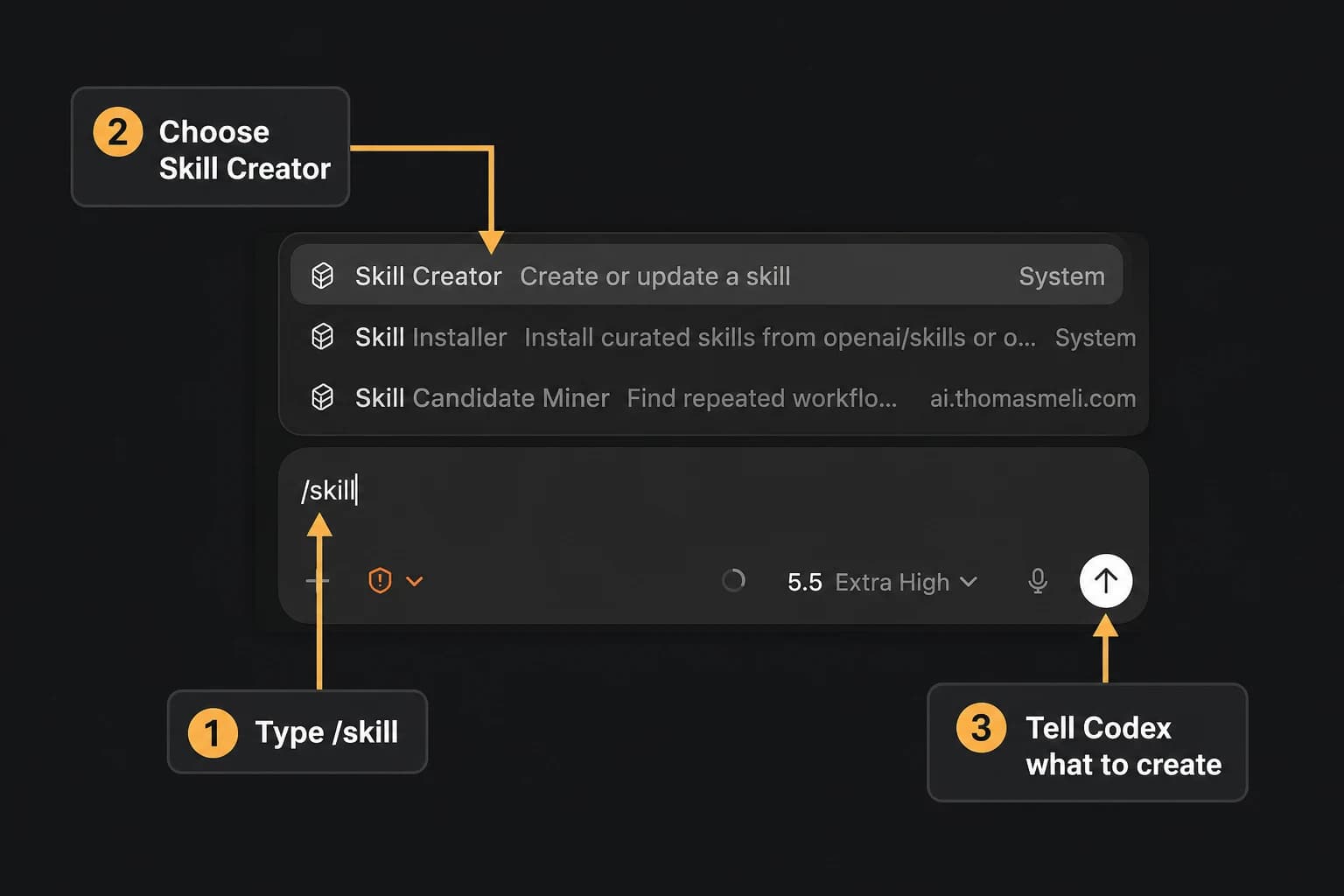
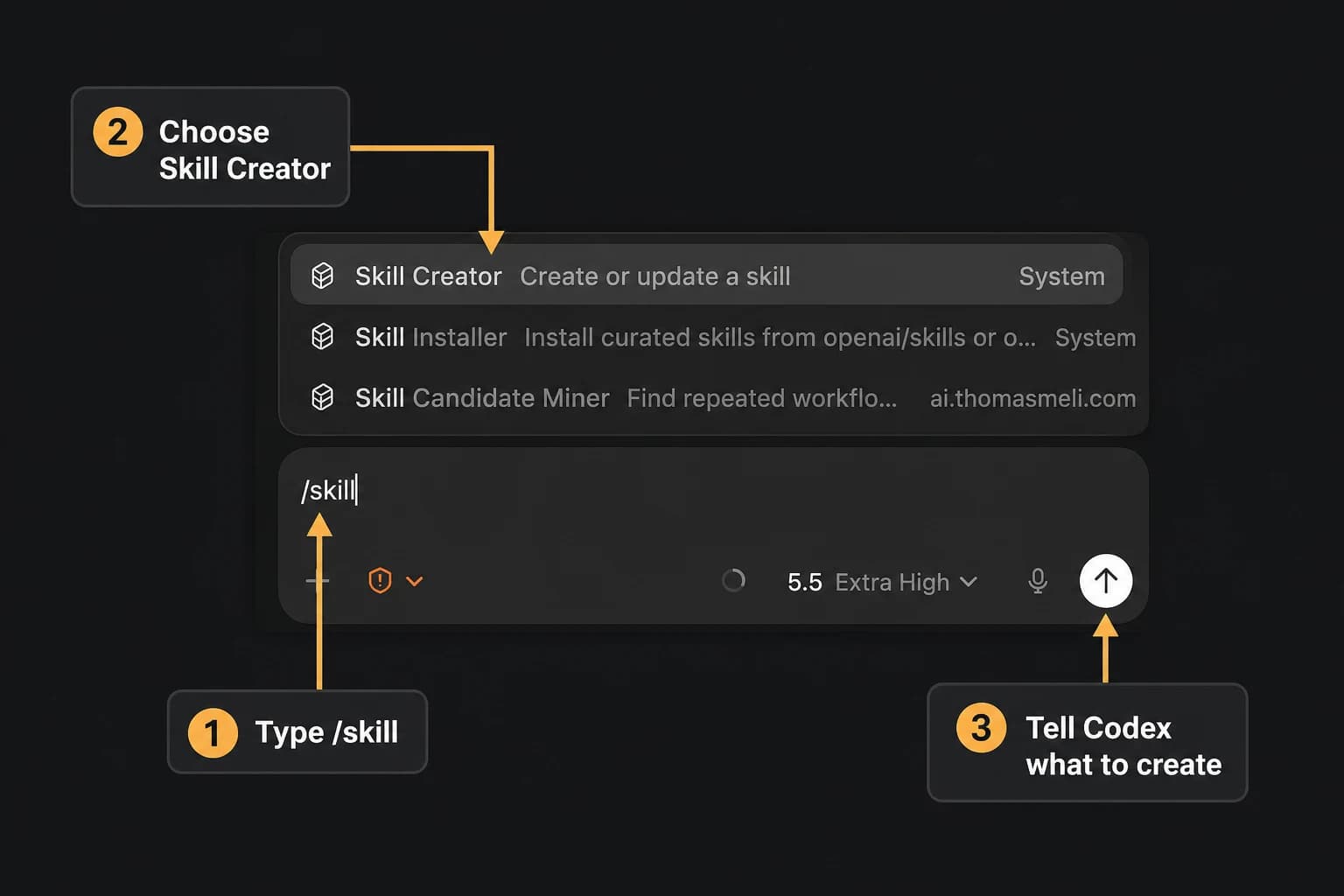
Next week’s recap will start in a new chat that has none of this conversation. A new chat shows whether the saved instructions work on their own. Fresh notes also show how the skill handles different decisions and missing details. When you find a better approach or change your requirements or standards, update the skill so later chats use it.
In a new Codex chat, type $meeting-recap, paste this week’s notes, and check the recap. Then ask for a recap without naming the skill, and make one similar request that should not use it, such as drafting a meeting agenda. Ask $skill-creator to save any improvements, then test again.
Check: The recap is useful, marks unanswered questions as open, and the skill runs on the intended requests.
Understanding
In Codex, a project groups chats around a folder on your computer. A project skill lives inside that folder, so only that project’s chats can use it. A personal skill lives in your home folder, so every project on this computer can use it. Codex can save the skill in the right place and show you where.
Ask Codex to check the skill’s saved location and name. If $meeting-recap works but plain requests do not trigger it, check the description and whether automatic use is turned off.
In the description, specify the task the skill handles and similar requests it should ignore, such as drafting a meeting agenda. Split unrelated jobs into separate skills.
Codex usually picks up edits on its own. Ask Codex to confirm the skill is saved in the project or personal skills folder. If the change still does not appear, quit and reopen the ChatGPT desktop app.
The dates below show when each official source was checked against the steps on this page.