

Learn by doing
Walkthroughs
Short, step-by-step setup guides. Each one ends with a working result and links its official sources.
Learn by doing
Short, step-by-step setup guides. Each one ends with a working result and links its official sources.
Install Anthropic’s AI assistant on your computer in two steps, then try a few things it can do.
You’ll need a Mac or Windows computer, or a Linux computer running Ubuntu 22.04 or later or Debian 12 or later, and an internet connection. The Linux app is still an early test version (beta). Use your Claude account, or create one when you sign in.
See the two setup stepsOpen the official download page and choose the version for your computer. Open it and sign in. That’s the whole setup.
Go to Claude downloadsAlready installed? Explore the features below.
Claude has a separate installer for each kind of computer, and Anthropic’s download page lists them all in one place.
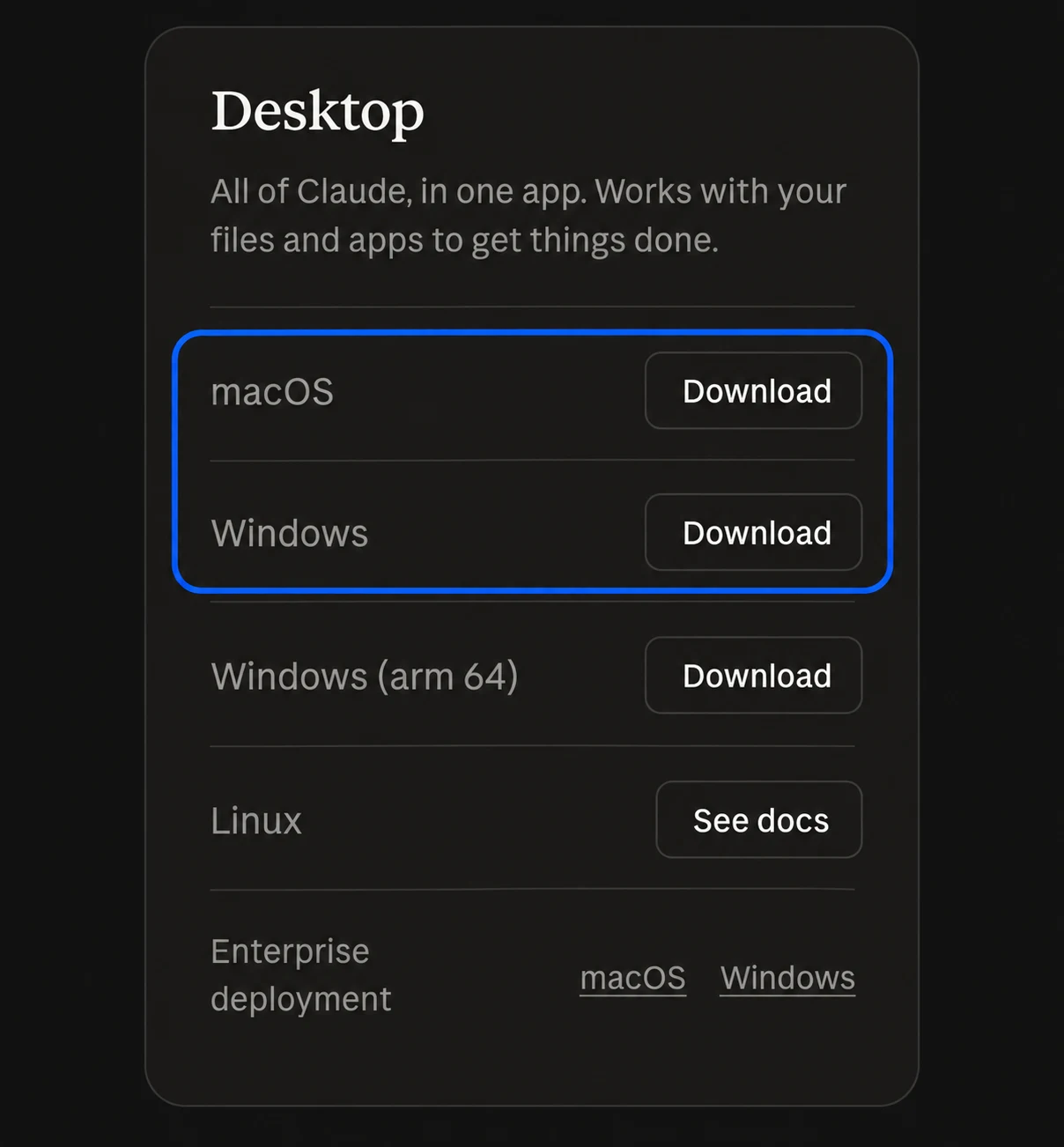
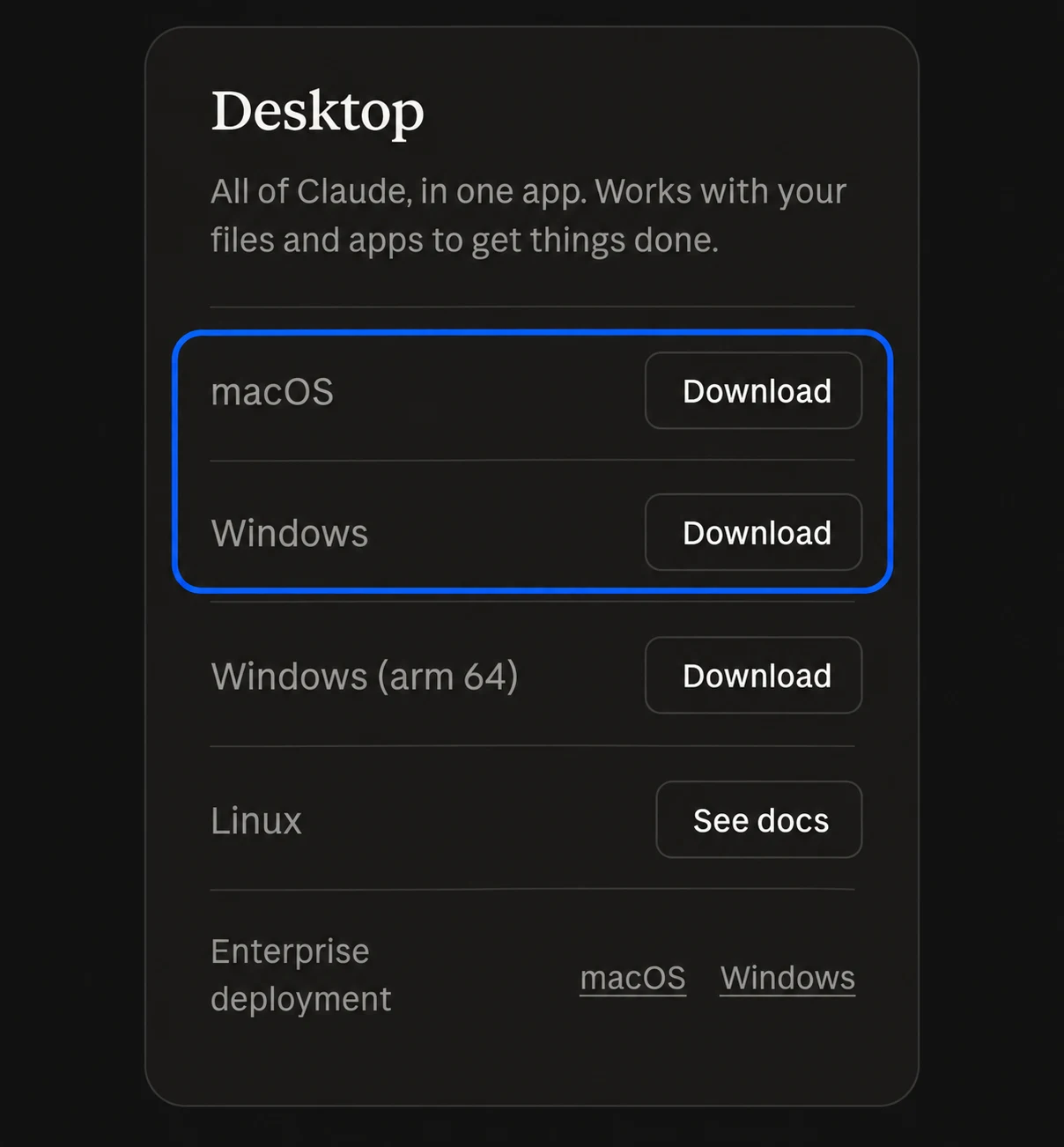
Open the Claude download page. Under Desktop, choose the download for your computer: macOS or Windows. Most Windows PCs use the standard Windows download; choose Windows (arm64) only if Settings > System > About on your PC lists an ARM-based processor. The page also lists ChromeOS, and its Linux option opens Anthropic’s Linux install guide, which uses the terminal.
Check: On a Mac or Windows PC, the installer appears in your Downloads folder.
Your Claude account works in the app and on the website, so use the same account if you already have one.
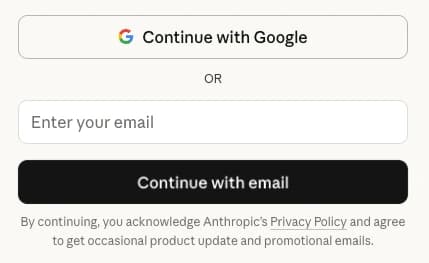
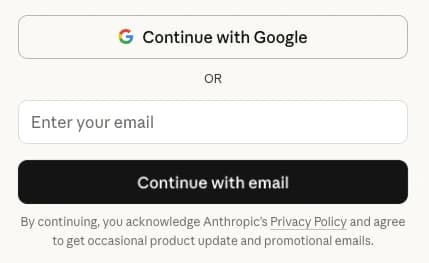
On a Mac or Windows PC, open the downloaded file and follow the installation prompts. Then open Claude from Applications on a Mac, the Start menu on Windows, or the app launcher on Linux. Sign in with Google or your email address, or create an account; the email option sends a sign-in link instead of asking for a password.
Check: The Claude app is open and ready for a new conversation.
Installation complete
Claude is open and signed in. The tour below is optional.
Your optional feature tour
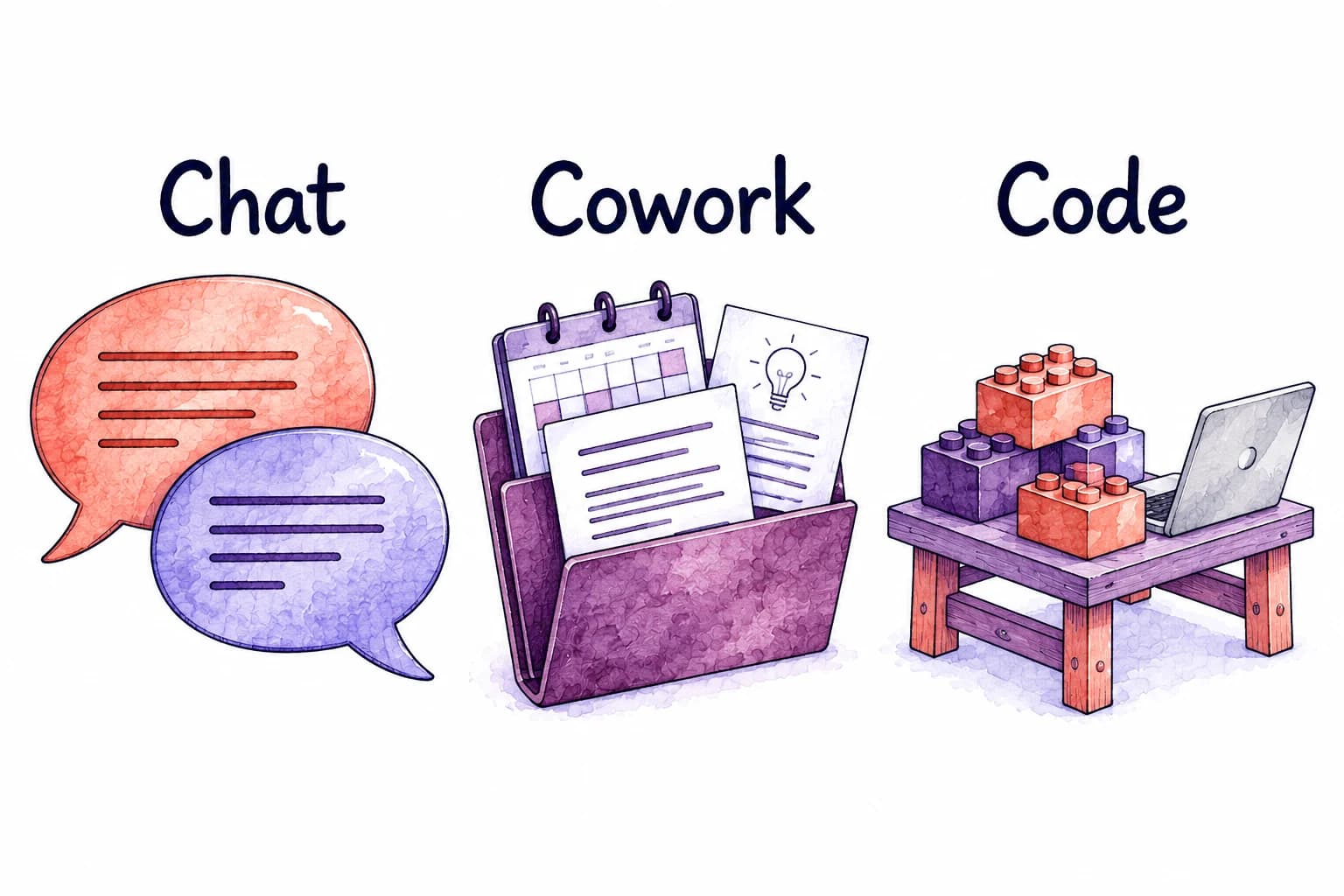
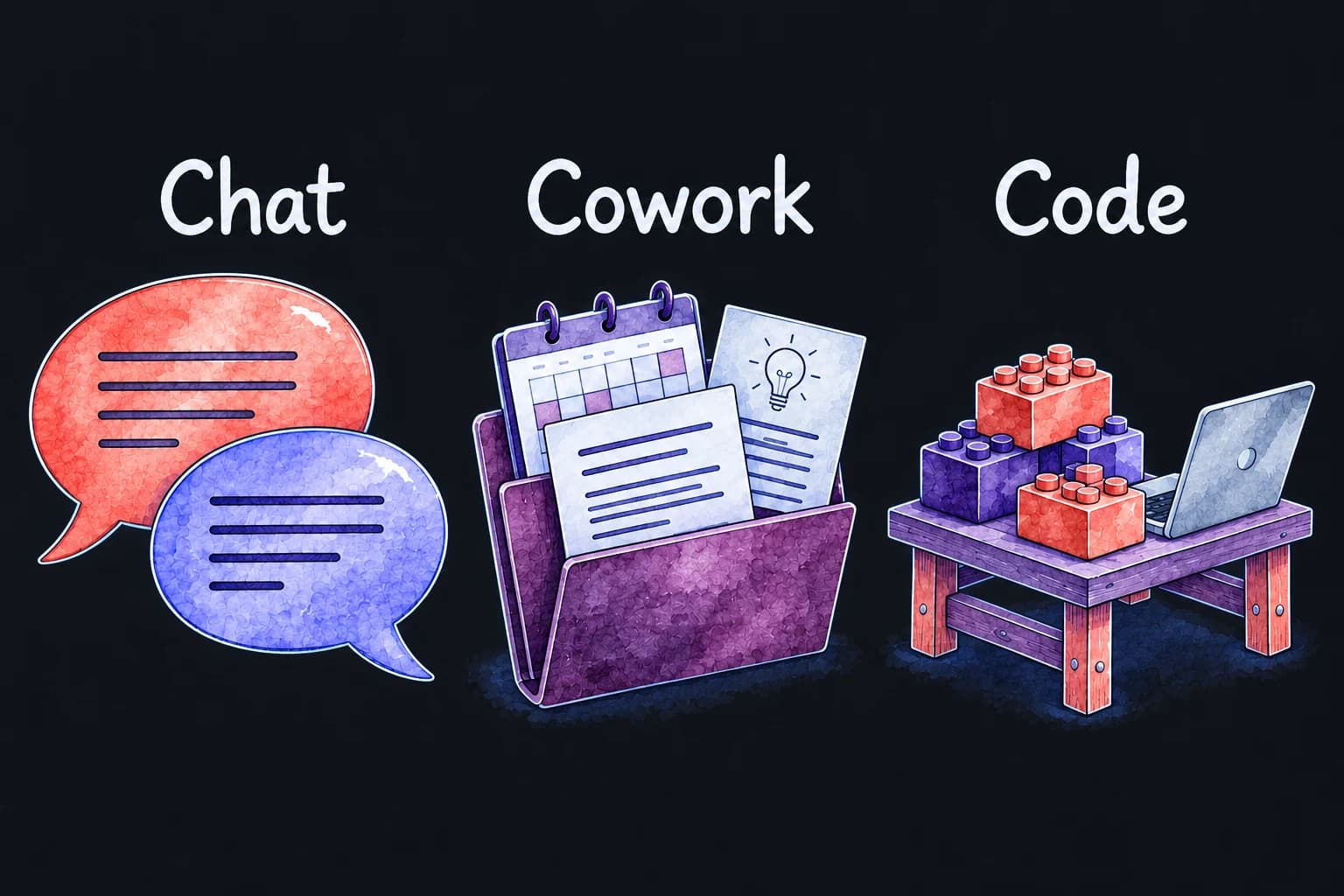
Claude can answer a quick question, carry out a task with several steps, or build an app, and the desktop app offers these as tabs at the top of the window. Chat is for questions and conversation, much like Claude on the web. Cowork helps with everyday work, such as preparing for a meeting or using your email, calendar, and documents together. Code opens Claude Code, which builds apps and websites from a plain description of what you want.
Anthropic is combining Chat and Cowork into one conversation, starting with Pro and Max plans. If you don’t see separate Chat and Cowork tabs, you have the newer combined layout, where Claude picks the tools for each request. The Code tab stays in both layouts.
In the desktop app, Cowork and Code can work with folders you choose, so you don’t attach every file separately. Both need a paid plan.
Each feature below is optional. Start by connecting an app you use, since several later features draw on your email, calendar, or files.
Your email, calendar, and documents hold much of the information about your work. Claude accesses them through connectors, permissions you give Claude to search and act in a service such as Gmail. To see or manage them, click + in the lower left of the message box and hover over Connectors. With Gmail connected, Claude can find an email, summarize a conversation, or draft a reply for you to review.
Start with one account you’re comfortable sharing, then add your calendar and files gradually. Connectors work in Chat and Cowork alike. If you see a separate Cowork tab, Cowork is useful when a task draws on several sources at once.
Choose an app below, copy the request, and paste it into a conversation:
Find messages and draft replies.
You approve the connection yourself by signing in to Google or Microsoft and allowing access on that company’s screen. Then ask for something small, such as one email from a person you name: Claude finds it and shows a link to the message.
A sent email can’t be taken back, so take email one step at a time. Ask it to read a few emails you’ve sent to learn your writing style, then draft a reply for you to review. Claude asks before sending by default; still tell it: “Show me drafts. Don’t send anything unless I approve it.”


Claude helps more when it knows your work, your goals, and preferences such as how much detail you want. A setting called Instructions for Claude stores those details, so you don’t repeat them in every conversation.
If you’ve connected an app, your assistant can use selected emails, appointments, or documents to ask more useful questions. Claude can interview you to fill in what those sources leave out.
Ask your assistant to interview you:
Read the draft and change anything that doesn’t sound like you. Paste the approved text into Instructions for Claude: click your name or initials, then Settings. With separate Chat and Cowork tabs, Cowork also has its own Global instructions under Settings > Cowork.


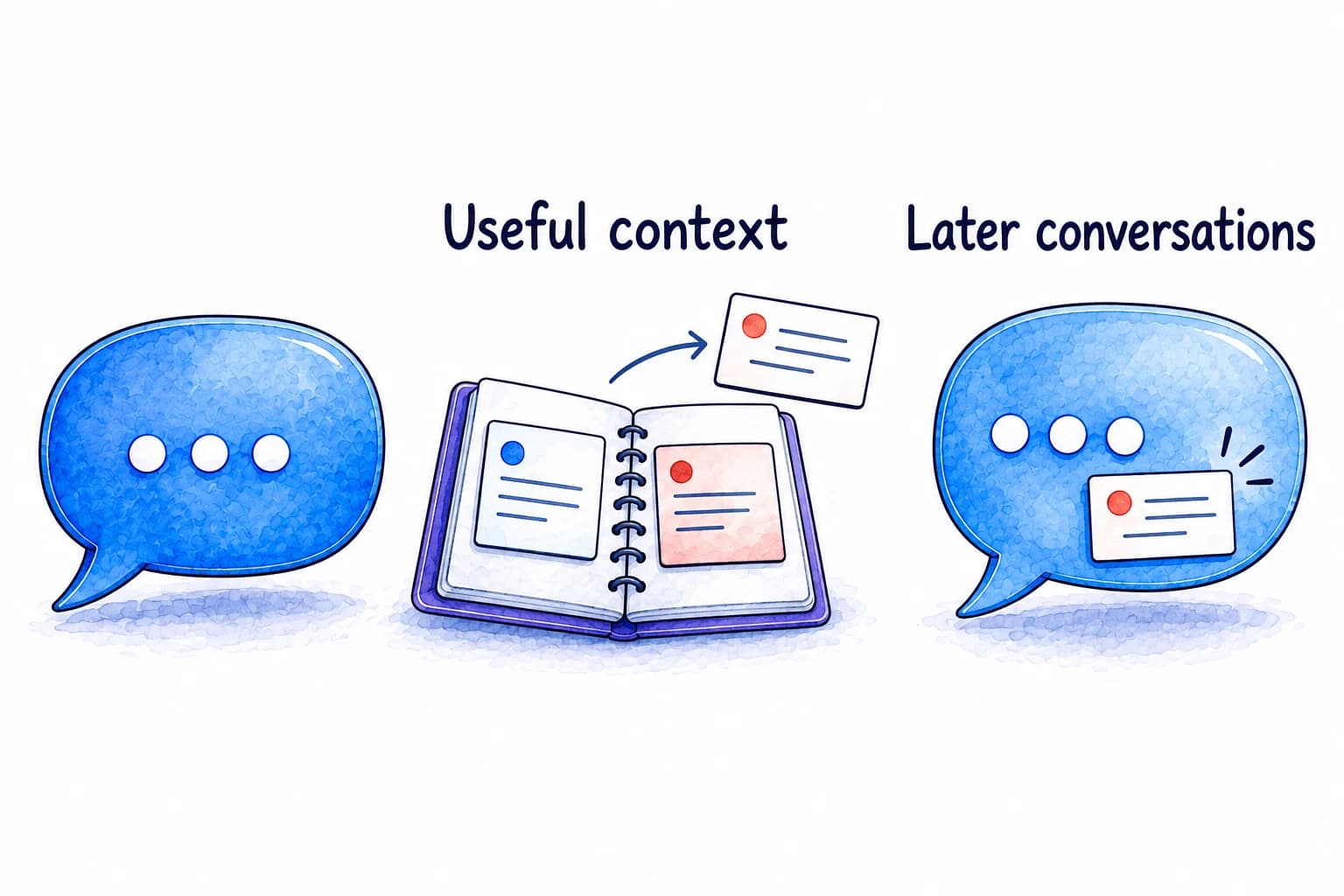
You shouldn’t have to re-explain a project every time you start a conversation. Instructions for Claude hold what you tell Claude on purpose. Memory saves useful details from past conversations for later ones, such as a project you mentioned last week, and it can save more as you talk. It may already be enabled, so this is a good time to review what it saves.
Ask it to explain your current settings:
Review a few saved details and correct or delete anything inaccurate or outdated. The controls are in Settings > Memory, or Settings > Capabilities in older versions.
A Cowork task running on your computer may not remember what you told Chat, so restate the key details there. Chat shares memory with cloud Cowork tasks, which run on Anthropic’s servers. Local Cowork tasks run on your computer, don’t use that memory, and rely on their own instructions instead.

Sometimes the tool you want doesn’t exist yet, such as an inbox sorter that works your way. Claude Code can help build it from a plain description, and you don’t need to be a software developer to begin. Explain what you want in ordinary language, answer its questions, and try what it makes.
Click the Code tab at the top of the window and start with:
Try the app it makes, then ask for a change in your own words.
If it asks for a folder, choose an empty one for this app so its files stay apart from your other work. Before it sets anything up or touches your inbox, ask it to explain what it will do and what access it needs.


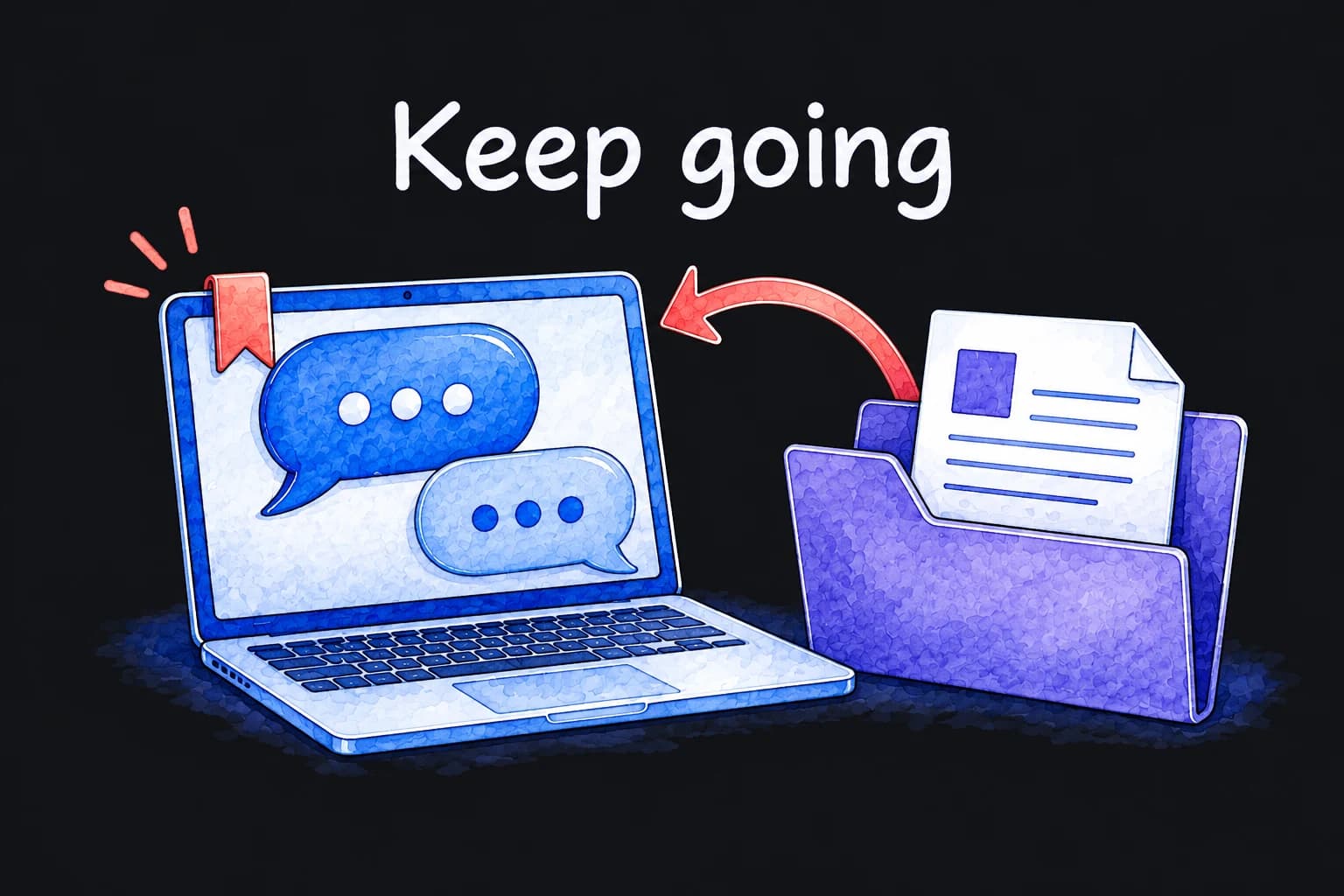
Work with Claude often spans more than one sitting. Each conversation keeps its history, so you can reopen it and pick up where you left off, whether to ask another question or keep improving something Claude helped you make.
Open a conversation from the sidebar and try:
Check its summary of where you left off, then tell it what you’d like to do next.
If this is your first visit, start any conversation now and come back to it later.

Check that the download matches your computer: choose Windows (arm64) only if Settings > System > About lists an ARM-based processor. Claude needs macOS 11 or later, Windows 10 or later, or on Linux, Ubuntu 22.04 or later or Debian 12 or later. If you see an error, open Claude on the web and share the exact message for help. On a work computer, follow your organization’s installation rules.
Tell your assistant which service and account type you use, and ask it whether a connector exists for it. You can also browse the list yourself: click + in the lower left of the message box and hover over Connectors. Some connectors depend on your plan or need workplace approval. If you’d like to start while you sort this out, try another source or attach a file.
Tell it which account to search and give a useful clue, such as the sender, document title, or approximate date. Ask it to check whether the connector is working and explain what it searched. If it still can’t reach the item, attach the file to your message or paste the email text.
The dates below show when each official source was checked against the steps on this page.